In today's digital world, Android smartphones have become essential companions in our everyday lives. Whether you want to stay connected with loved ones, boost your productivity, or enjoy entertainment on the go, Android devices are powerful enough to handle it all. However, the way you use your smartphone plays a huge role in shaping its performance, user experience, and longevity. To ensure optimal performance and extend your phone's lifespan, you must avoid certain things and adopt smarter practices to enjoy the best Android experience.
Here we will discuss some of the most common mistakes Android users make and explore ways to avoid them. We have listed 14 things you should never do on your Android phone. This includes a variety of topics from skipping software updates to ignoring data backups, and everything in between. We will also discuss the consequences of overlooking security measures and rooting your smartphone. Some of these might surprise you, while others will help you learn something new about your Android phone.
Skip software updates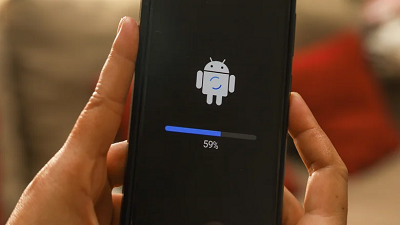
The Android operating system regularly releases software updates for its devices. These updates add new features, patch security issues, fix common bugs, and improve the overall performance. Software updates also bring new security features to protect your Android smartphone. In most cases, your Android phone will receive a notification when an update is available. However, you have to initiate the installation process manually.
Even if you've enabled automatic updates, the phone has to reboot, and you often need to accept the new terms and conditions. Unfortunately, many users tend to overlook software updates. This is mainly because the installation needs time, and it might feel like an unnecessary interruption during a busy day. That said, it's important to install the latest software updates for the optimal functioning of your smartphone. After all, there's a reason why developers have released them.
Over time, running older OS versions can trigger issues like app incompatibility, slow performance, and random glitches. If you're unsure whether you've installed the latest software update, you can check the Android version in the Settings app.
Here's how to install the latest Android version on your smartphone:
■ Open the Settings app.
■ From the bottom, select System, and tap Software Update.
■ If an update is available, tap the Install button and follow the on-screen instructions.
■ Alternatively, if you receive an update notification, you can tap it and follow the same steps.
Stop restarting your phone regularly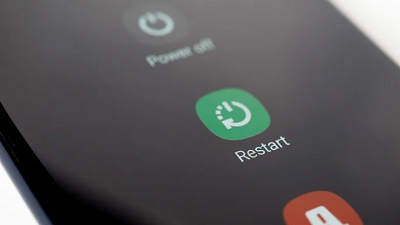
Most people don't restart their smartphones unless they encounter an issue. A simple reboot can fix common software issues, unresponsive or frozen apps, and improve the overall performance of your smartphone. It clears temporary memory, closes background processes, and gives a fresh start to the system. Many tech experts and the NSA (National Security Agency) recommend restarting your smartphone at least once a week. If your phone starts freezing randomly, shuts down unexpectedly, or apps crash too often, it's a sign that your smartphone needs a restart.
Here's how to restart your Android phone:
■ Press and hold the power button until a power menu appears.
■ Select Restart or Reboot.
■ If prompted, enter your phone's passcode.
Some Android phones can be set to restart automatically at a set time. For instance, Samsung Galaxy phones offer an Auto Restart feature that automatically reboots your phone periodically.
Here's how to automate periodic restarts on Samsung smartphones:
■ Open Settings.
■ Select Battery and device care.
■ Tap the More options icon (indicated by three vertical dots).
■ Choose Automation and turn on Auto restart at set times.
■ Set a Schedule when you want your phone to restart automatically.
Download apps from unknown sources
The Google Play Store has over 2.6 billion apps and games, but some users still download apps from third-party sources. Google enforces strict developer guidelines, multiple safety checks, and manual reviews, ensuring apps are safe to download. Apps from unknown sources may contain malicious code that can monitor your online activity, flood your device with annoying pop-ups, and steal sensitive information. Poorly optimized apps may also crash other apps or trigger stability issues on your Android phone. That's not all. Fake and malicious apps may even expose you to serious threats, such as phishing. While Google Play Protect scans all your apps to keep your device and data safe, malicious apps can slip through.
To protect your Android phone, it's a smart idea to avoid downloading apps from unknown sources. Some apps might look innocent, and even mimic official names like ChatGPT or WhatsApp, but they could hide adware and spyware. You might also come across hundreds of fake sensor-based apps that claim to measure body temperature, heart rate, blood pressure, and other features your Android phone can't even perform. Not only are these apps useless, but they might also run in the background and drain your Android battery. If you've already installed an app from an unknown source and your phone is experiencing some issues, try uninstalling that app.
■ Open Settings and select Apps, then All apps.
■ Tap the app you want to remove and select Uninstall.
■ Tap OK to confirm your action.
Fail to monitor app permissions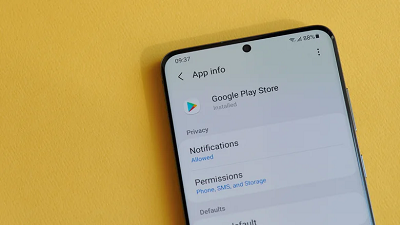
When you install a new app, it will send you a notification seeking permissions to use certain features on your device, such as the microphone or contact list. Most users do not pay attention to Android permission requests. They rush through app installations, granting all permissions without any second thoughts. However, not every app needs a camera, a microphone, or location access. For instance, if a flashlight app asks for the camera or location access, it should raise suspicions. If you've accidentally granted full access to an app, you can change its permissions.
Here's how to change app permissions on your Android phone:
■Open Settings.
■ Tap Apps and select the app you want to change permissions for.
■ Tap Permissions. It will show you all the allowed or denied permissions for the app.
■ To change a permission setting, tap it, then choose Allow or Don't allow.
■ For microphone, camera, and location permissions, you may be able to choose from four options: All the time, Allow only while using the app, Ask every time, and Don't Allow.
Neglect battery-optimization settings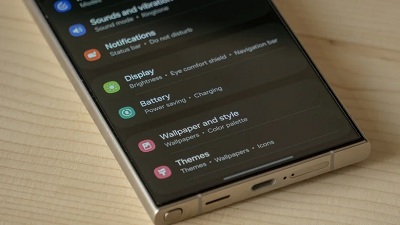
Many people don't know how and why to use Android's battery optimization settings. When an Android phone is running low on battery and there's no way to charge it, Battery Saver or Power Saving Mode can be a lifesaver. It reduces power consumption and helps conserve battery life on your phone. Android also recommends using Battery Saver to reduce battery drain on your device.
However, Battery Saver also turns off or limits some features on your device. For instance, it turns off the always-on display, delays notifications, and limits background activity, among others. This may result in slower response times and reduced performance. With that said, you can still access important features like calling and messaging. You don't need to use Battery Saver mode all the time. It is especially useful in emergencies, and won't damage your Android phone's battery health.
Some users also download third-party battery saver apps, but this isn't necessary. Android's built-in battery optimization settings are not only safe, but are more reliable and effective.
Here's how to enable Battery Saver on Android phones:
■ Open the Settings app and select Battery.
■ Tap Power Saving or Battery Saver.
■ Toggle the switch to On.
■ Depending on your Android phone model, you might be able to schedule Battery Saver mode to automatically turn on at a certain percentage.
Get in the habit of fully charging and discharging your phone
Android smartphones pack lithium-ion batteries, which have limited charge cycles. A charge cycle count is the number of times you've discharged and charged the battery. When you charge your phone from 0 to 100%, it's counted as one charge cycle. If you frequently drain the battery to zero, it will exhaust its charge cycles faster and harm your phone's ability to hold a charge. Similarly, charging your phone to 100% puts more stress on the battery and may shorten its lifespan.
Many users have a habit of using their phones until the battery drops to zero, and then charging it to 100%. Leading Android manufacturers and research experts say the habit of letting the battery drain to zero and then charging your phone to 100% might harm the Android battery health. To maintain your phone's battery health, try to keep the battery levels between 50% and 80% whenever possible. As mentioned, many Android phones have built-in battery health optimization features. Samsung, for instance, offers a "Protect battery" feature, which limits the charging to 85%. Now, that doesn't mean you can never charge your phone to 100%. It won't do much harm on the odd occasion, like before a long day of travel.
You must also avoid exposing your device to extremely low or high temperatures. Ideally, the optimal usage temperature for a smartphone is between 32 and 95 degrees Fahrenheit (or 0 to 35 Celsius).
Keep the phone low on available storage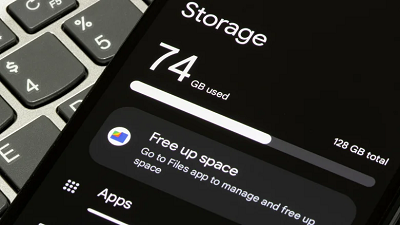
After months or years of use, your Android phone may reach its storage limit. Low storage may impact your phone's performance. It may prevent you from downloading software updates, saving new photos, and can even slow down the user interface. You may also notice a decrease in your phone's overall speed. To escape such issues, you must regularly monitor and manage your phone's storage.
This is how to check storage space on your Android phone:
■ the Settings app.
■ Scroll down and tap Device Care or Device Maintenance.
Tap Storage and it will show the used and available storage space on your device.
According to Google, an Android phone may experience performance issues when the available storage space drops below 10%. If your phone is running low on storage, it's time to free up that precious space. You can delete unused apps, unwanted media, and older data. If you want to keep some data, you can use cloud storage services like Google Drive and OneDrive, or go for a microSD card, if your phone supports it.
source 
