Still, reminiscing about playing a few rounds of Spider Solitaire or Space Cadet pinball? Here's how to bring them back on Windows 10 and 11.
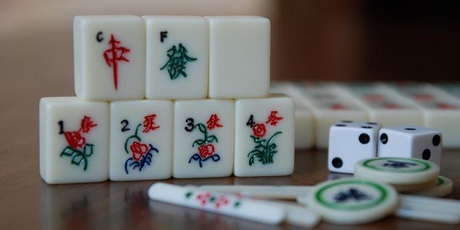
Windows 7 included 11 casual games users can play, such as Solitaire, FreeCell, Minesweeper, and Hearts. However, Microsoft removed all those casual games in Windows 8. The Solitaire Collection app that comes with Windows 11 has only restored three of those casual games on that platform.
Do you want all 11 of the casual games from Windows 7 back in Microsoft’s latest desktop platform? If so, there are two ways you can restore them in Windows 11. This is how you can revive all those classic casual games from Windows 7 and XP on Microsoft’s newest PC platform.
How to Restore Classic Windows 7 GamesWindows 7 Games for Windows 11 and Windows 10 is a third-party software package that includes all the casual games that came with Windows 7. That software enables you to selectively install the classic casual games from Windows 7 you want to play. These are all the casual games you can install with it:
• FreeCell
• Chess
• Mahjong
• Purple Place
• Solitaire
• Spider Solitaire
• Hearts
• Internet Spades
• Internet Backgammon
• Internet Checkers
• Minesweeper
As Windows 11’s Solitaire Collection app includes three of those games, you won’t need to install them all. However, Spades, Backgammon, Checkers, Minesweeper, Hearts, Purple Place, Mahjong, and Chess are all missing. This is how to restore those casual games with Windows 7 Games for Windows 11 and Windows 10.
1. Open the
Windows 7 Games for Windows 11 and Windows 10 download page.
2. Click
Download Games on that webpage.
3. Click File Explorer’s taskbar bar, and then open the folder the Windows 7 Games for Windows 11 and
Windows 10 ZIP archive downloaded to.
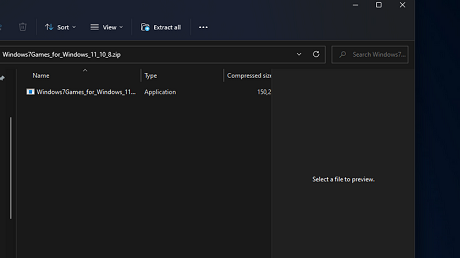
4. Double-click the "Windows 7 Games for Windows 11 and Windows 10" ZIP file to open it.
5. Click
Extract all on Explorer’s command bar.
6. Next, select the
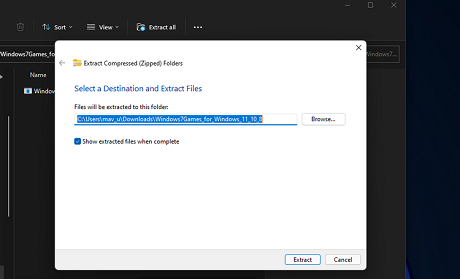
Show extracted files when complete checkbox on the Extract Compressed (Zipped)
Folders window.
7. Click
Extract to decompress the ZIP.
8. Double-click Windows7Games_for_Windows_11_10_8 in the extracted folder that opens.
9. Select
English on the Installer Language window, and click
OK to proceed.
10. Press the
Next button to view the component list in the screenshot directly below.
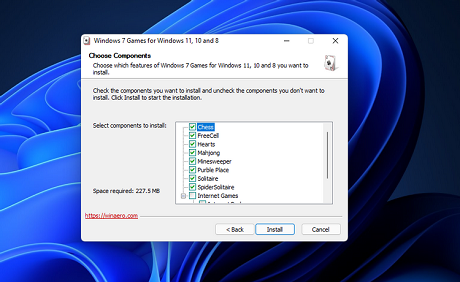
11. Select the checkboxes for the Windows 7 casual games you want to install.
12. Click the
Install option.
13. Thereafter, press the
Finish button.
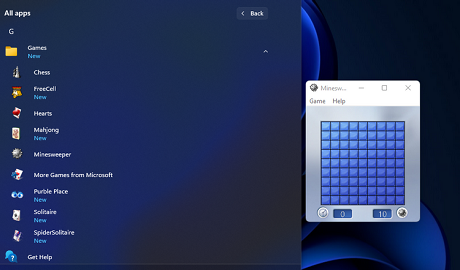
Now you can play some restored Windows 7 games. To do so, click the
Start button. Select the
All apps option, and click the Games folder on the Start menu. Then click a game in that folder to open and play it.
 How to Restore Windows 7 Games With Microsoft Store Apps
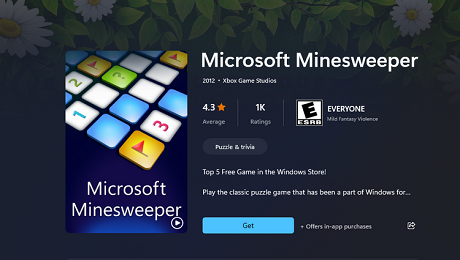
Alternatively, you can get most of Windows 7’s casual games by downloading freely available apps for them from Microsoft Store. For example, you can download Microsoft Minesweeper and Mahjong apps from there. These are some freely available MS Store apps you can download and install to play casual games included with Windows 7:
• Microsoft Minesweeper
• Microsoft Mahjong
• Hearts Free
• Spade's mania - online spades
• The Backgammon
• 3D Chess Game
• Online Checkers
Those might not be the very same casual game apps that came with Windows 7. However, they’re still the same games nonetheless. You can download and install those Microsoft Store apps like this.
1. Click
Start to select and open the Microsoft Store app.
2. Select the
Apps tab.
3. Input a keyword from the game app list above in the search box.
4. Click the magnifying button on the right of the search box.
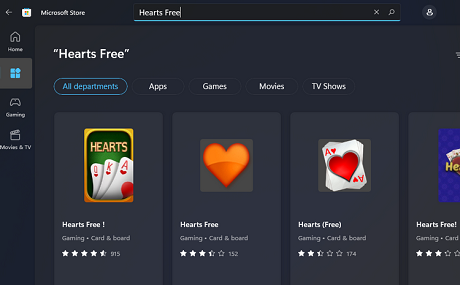
5. Select the game to open its download page.
6. Then click
Get to install it.
 How to Restore XP’s 3D Pinball Space Cadet Game
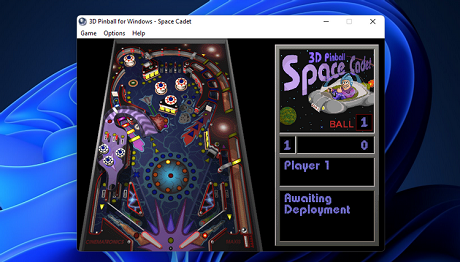
Aside from restoring casual Windows 7 games, there’s another XP game worth reviving. 3D Pinball Space Cadet is a casual game included with Windows XP/Me. Some users have missed that fun pinball simulator in Windows Vista, 7, 8, 10, and 11.
You can’t install it with Windows 7 Games for Windows 11 and Windows 10, and that game isn't available on Microsoft Store either. However, you can download and install 3D Pinball from Softpedia in the following steps.
1. Open
3D Pinball Space Cadet’s] Softpedia page.
2. Click
Download Now on that webpage, and select the
Softpedia Secure Download (US) option.
3. Open File Explorer and then the folder that includes the
3d_pinball.msi installer.
4. Double-click 3d_pinball.msi to open the game’s installer.
5. Click
Next on the 3D Pinball – InstallShield window.
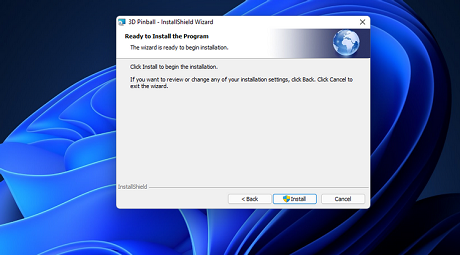
6. Press the
Install button.
7. Select the
Launch 3D Pinball option, and click the
Finish option.
 Bring the Fun Casual Games Back to Windows 11
Exactly why Microsoft removed the casual games from Windows is a mystery. Minesweeper and 3D Pinball are two more unique games users have especially missed in Windows 11/10/8. Now you can have fun with all those Windows 7 and XP casual games once again.
source
