Like their ‘90s namesakes, the tools in Microsoft’s new PowerToys app are quite useful for power users.
Back in the 1990s, Windows users had access to a number of small, free software tools from Microsoft handy for everyday tasks, such as accessing desktop items from a menu on the taskbar or quickly changing the screen resolution. Collectively, these programs were called “PowerToys” (see the eponymous Wikipedia article for more history and a list of items).
Today, Microsoft offers a set of tools under the control of a single UWP app by the same name. Unlike the ‘90s tools, which had to be downloaded and installed individually, the newest Windows 10 PowerToys app gives users access to all available PowerToys in one go.
It’s not currently available through the Microsoft Store, though: interested readers will find this open-source tool at GitHub. That’s probably because PowerToys’ full name is “PowerToys (Preview).” With a current release number of v0.23 (less than 1.0), it appears the program has some ways to go before it’s ready for the Store.
Despite its preview status, however, the new PowerToys collection is well worth a look. Here’s a quick tour.
Installing (and updating) PowerToysTo get started, go to the
PowerToys site on GitHub and download the latest release; you’ll find it under “Releases” near the top right of the home page, or visit the
Releases page directly. (Make sure not to grab an experimental pre-release.)
Over the past few months, PowerToys has really cleaned up its installation and update capabilities. Versions 0.18.2 and earlier would require users to jump into Task Manager and terminate various processes and applications before its installation could complete. Via Twitter, one of team leader
Clint Rutkas’ associates informed me this was because of the program’s inclusion of the Core .NET DLLs into PowerToys.
But as of release v0.20.1, PowerToys handles all open applications without issue. Now, it simply asks for permission to restart the Windows Explorer (process name: explorer.exe) as it finishes up updating or installing itself.
Speaking of updates, Rutkas and his programmers are working hard to push frequent updates to PowerToys. A look at the
Releases page shows eight releases since early June, or about two per month. As you can see on the General pane screenshot below, the program includes a “Check for updates” button, and it can be configured to download updates automatically using the toggle at the bottom of that pane.
The PowerToys UI and General paneOnce it’s installed, right-click PowerToys in Windows 10’s notification area (or the Start menu) and select Settings from the pop-up menu. You’ll see a screen like this:
 The Shortcut Guide provides a key to various Windows key shortcuts at any time.
You can configure the Shortcut Guide by selecting it in the left pane of the PowerToys Settings window. When you do so, the main pane gives you options such as setting the length of time you need to press winkey before the Shortcut Guide appears, designating the overlay’s opacity, and choosing a color for the overlay.
Zeroing in with Color PickerWhen you use the keyboard combination Windows key + Shift + C, a small rectangular window appears on-screen (see below). Its left-hand side shows the color at the very head of your mouse cursor. Its right-hand side displays a six-digit hexadecimal code for the color value preceded by a hashmark (#), with the equivalent RGB code (a triplet of three digit values) below.
The screenshot at right shows what can only be described as a beautiful turquoise blue from a Microsoft spotlight photo of the waters off the coast of Bora Bora. (Microsoft curates a vast collection of photos called Windows Spotlight and Bing wallpapers; use this
free app to grab your own set.)
Color Picker writes the hexcode value to the paste buffer as you click the mouse to close this PowerToy, so you can easily paste it into a graphics program or HTML markup (or anyplace else you might need such a color code). For more details, see the
Color Picker overview on the PowerToys GitHub site.
Working with context menusThe various PowerToys that work within File Explorer — including Image Resizer and PowerRename — appear in response to a right-click as part of the pop-up context menu it produces. The following figure shows that Resize pictures appears near the top of that menu, while PowerRename is right at the very bottom. You can use these facilities by selecting them through this context menu any time you like.
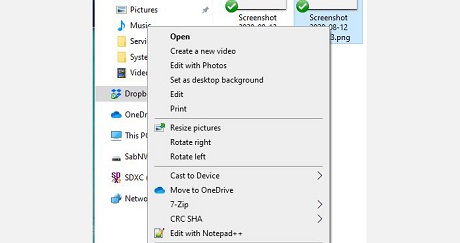 The Resize pictures and PowerRename items in the File Explorer context menu lead to the controls
for their respective PowerToys click to enlargeClick Resize pictures to get to its control pane, or PowerRename to see what it can do. These tools are more or less self-explanatory, although it’s a good idea to have some knowledge of regular expression before you use PowerRename to mess around with real, live files on your Windows 10 PC. Here’s a nice
regex tutorial for Visual Studio that should quickly show readers the basics of characters, operators, constructs and patterns. You can find out more about
Image Resizer and
PowerRename at the PowerToys GitHub site.
Using PowerToys RunBy deliberate design, the combo keys for PowerToys Run are right next to one another on your keyboard. As soon as you click Alt + space, the PowerToys window pops up instantly to ask for search input, and its search function is likewise lightning fast. I used the string “power” for my example, knowing it would turn up PowerShell (among other things, as shown below).
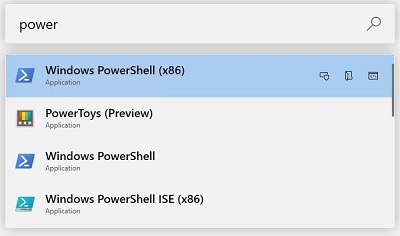 Pressing Alt + space launches PowerToys Run, which matches up to 4 items for the
string entered in its search box.Click any item in the search results to launch and go. Once you get the hang of it, it beats the pants off the Run box (still available with Windows key + R for diehards).
Just scratching the surfaceThis story is intended as a basic overview and introduction to PowerToys, so I deliberately didn’t dig into FancyZones, which brings enough to the table to warrant a story of its own. In the meantime, please read the
FancyZones Overview document online. There’s plenty of good information and examples to show how the window manager works and what it can do.
In general, I find the current generation of PowerToys to be a worthy successor to the loose collection of tools under the same name that date back to Windows 95. Spend a little time with this collection of widgets, and I’m sure you’ll agree.
source
