When's the right time to do itSafe mode helps you see if a buggy app is causing your Android phone to crash, freeze, or slow down.Here's how.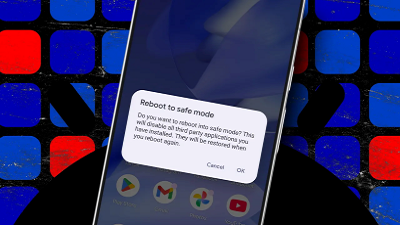
If your Android phone starts crashing, freezing, or acting strangely, it could be for several reasons, but one common culprit is third-party apps.
Any app installed from the Google Play Store can cause problems due to bugs, compatibility issues, or poorly optimized updates. Thankfully, Android has a troubleshooting tool called "safe mode" that can help you figure out if that's indeed the issue.
Safe mode temporarily disables all third-party apps and runs only the core Android system and preinstalled software. That creates a clean environment so you can see whether the problem is a third-party app or perhaps something deeper, such as your hardware.
How to boot your Android phone into safe modeMost Android phones support safe mode, including Google Pixel phones, Samsung Galaxy phones, and many others. For this guide, I'm using a Pixel phone, but the process is very similar across Android devices.
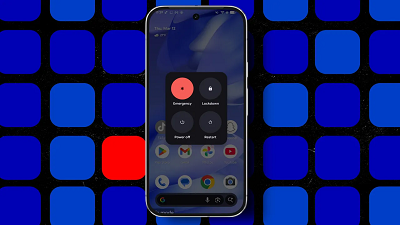
1. Open the power menuThe first step is accessing the power menu on your Android phone. Press and hold the Power button and Volume Up button together for a few seconds. This opens the power menu with options like Power off and Restart.
 Elyse Betters Picaro / ZDNET2. Enter Safe mode
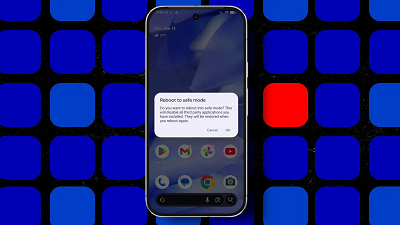
Once the power menu appears, press and hold the Power off option instead of tapping it. After a moment, your Android phone will display a prompt asking if you want to reboot into safe mode. Tap OK to confirm.
Your phone will restart automatically.
 Elyse Betters Picaro / ZDNET3. Confirm you're in safe mode
After the phone restarts, check the bottom corner of the screen. You should see a small "safe mode" label.
You may also notice some apps appear grayed out or missing. That is normal. Safe mode disables all third-party apps that you downloaded from the Play Store, leaving only the system apps that came with the device.
Note: Safe mode also enables Airplane mode on your device, but you can turn that off.
 Elyse Betters Picaro / ZDNET4. Use your phone like normal
At this point, use your phone normally for a few minutes or even hours. If the crashing, freezing, or slowdown has stopped, there is a strong possibility that one of your installed apps was causing the issue.
 Elyse Betters Picaro / ZDNET5. Exit safe mode
Before you can track down problematic apps, you need to exit safe mode.
Simply restart your phone by pressing and holding the Power and Volume Up buttons and then tapping Restart. On some Android devices, you can tap the safe mode label to restart your phone and exit safe mode.
Your phone should boot back with all your apps available again.
 Elyse Betters Picaro / ZDNET6. Find the buggy app
This can take a bit of time, but it is the most reliable way to identify what is causing problems on your phone.
Once you have exited safe mode, start uninstalling recently installed or recently updated apps one at a time. After removing each app, restart your phone and check whether the issue returns. You can also try using your apps before deleting them. If one behaves strangely or you need to force stop it, you've likely found the offender.
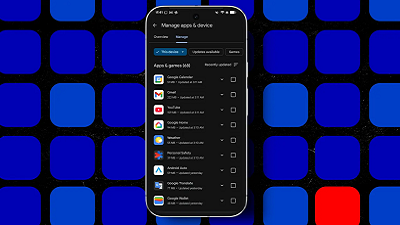
You can find recently updated apps in the Google Play Store.
Tap your profile, go to Manage apps and device > Manage, and select Recently updated to sort apps by their most recent updates. You can also open an app listing to review its latest changes under What's new.
 Elyse Betters Picaro / ZDNET
 Q: What exactly does safe mode do on Android?
Safe mode itself doesn't fix your Android phone's problems. It simply helps you diagnose them.
Safe mode disables all third-party apps so only Android system software and preinstalled apps run. This then lets you determine whether issues like freezing, crashing, or slow performance are caused by an app. If your phone works normally in safe mode, you can usually narrow the cause down to a third-party app that was recently installed or updated.
Q: What if my phone still has problems in safe mode?If your phone still has problems while in safe mode, the cause may be a deeper software issue or even a hardware problem. In that case, you may need to check for system updates to install, reset your device, or even contact the manufacturer for extra support.
You can also try clearing your Android phone's cache as the next troubleshooting step.
Q: Will safe mode delete my apps or data?Safe mode primarily prevents third-party apps from running, but it does not delete them from your phone. Google warns that safe mode does remove some home-screen widgets. So, if you use widgets, it recommends taking a screenshot to help you put them back.
Q: Why does my phone run faster in safe mode?With third-party apps disabled, your phone has fewer background processes to manage. If performance improves significantly, one of those apps may be using too many resources or crashing in the background, and you may want to delete it.
source

