Use your phone without security measures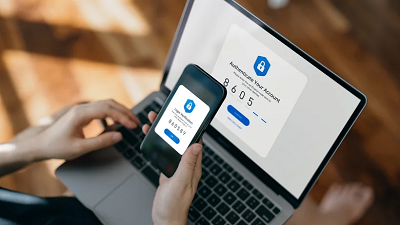
While Android is fairly secure, its open-source nature and support for third-party apps can expose users to malicious attackers. The latest Android version may offer up-to-date security patches against hackers, but not every user installs software updates instantly. This may give hackers a chance to break into your device. That's why it's crucial to take additional security measures.
The best ways to safeguard your device are to install system updates regularly and avoid apps from unknown sources. Additionally, using security practices like two-factor authentication (2FA) adds an extra layer of security, preventing unauthorized access to your data. You should also avoid clicking on suspicious links or responding to shady emails. If you download apps or software outside of the Play Store, or often connect your phone to a computer that isn't your own, you must install a good antivirus program. Make sure you only go for trusted options and avoid fake Android antivirus apps, as they can steal your private data.
Stop clearing app cache regularly

On an Android phone, cache refers to temporary data and files stored by apps so they can load faster. This may include images, videos, scripts, and other frequently used data. While cached data improves performance and speeds up loading times, it can also accumulate over time and cause issues on your phone. An overloaded or corrupted cache may crash an app or slow down general performance. For a smoother and faster experience, it's important to clear the cache on an Android phone. Most Android apps have built-in ways to deal with cached data automatically. However, some apps may not have this feature and require a manual cleanup. There's no need to install any third-party apps to clear the cache. You can delete this temporary data manually, using built-in options on your smartphone.
Here's how to clear app cache on your Android phone:
■ Open Settings and select Apps.
■ Select the app you wish to clear cache for.
■ Choose Storage.
■ On the app's info page, tap Clear Cache.
This will delete the app's cache, without affecting your login status or saved progress. On the other hand, if you choose to clear the app's data, it will delete settings, login info, and saved progress.
Connect your phone to a random PC
Connecting your phone to an unknown PC may expose it to security risks. If the computer is infected with malware, spyware, or viruses, it can spread to your phone. Malicious software on a computer can access your data, install faulty apps, or even steal your sensitive information like passwords and banking details. To safeguard yourself from such threats, you should only connect your phone to trusted devices. Avoid public, unfamiliar, or unverified computers, where you have no idea of the system's safety.
Taking appropriate security measures can help reduce vulnerabilities. Android offers USB restricted mode, a security feature that protects user data by limiting USB access when the device is locked. Advanced Data Protection in Android 16 incorporates USB protection and various other features to prevent unauthorized data extraction. Additionally, keeping your phone's software up to date and installing a good antivirus tool can help block potential threats.
Overload your phone with background processes
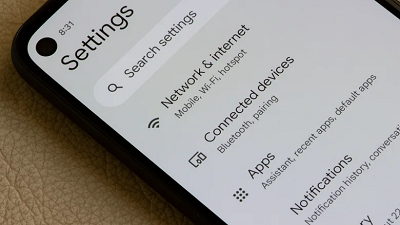
An Android phone can handle multitasking and manage background processes efficiently. You can open multiple apps at once and switch between them with ease. Some background apps on Android continue to run processes even when you aren't using them actively. These apps continuously sync data with their servers to provide you with up-to-date information. However, your Android phone may begin to slow down due to excessive background processes. When too many apps run in the background, they can consume unnecessary system resources, drain battery life, and reduce overall performance.
It's important to know how to check which apps are draining your Android battery. Sometimes, you may even find an app in the background that you haven't used in months.
Here's how to check for battery-draining apps on an Android phone:
■ Open Settings.
■ Tap Battery and select Battery Usage.
■ It will show you a list of apps and how much battery they have consumed in the past 24 hours.
Once you've spotted the apps consuming the most battery on your phone, you can force quit them. In case you don't need certain apps, you can uninstall them entirely.
Ignore safety while using public wi-fi networks

Many users prefer to leave Wi-Fi on all the time. It's convenient when you're at home or the office and your phone connects to a trusted network. With the rise of flexible and remote work opportunities, libraries, cafes, and other public spaces have become popular workspaces. While such work settings offer a refreshing change, using unsecured public Wi-Fi networks may expose your data to hackers. Since an unsecured network doesn't require a password, anyone can join it without any authentication. This elevates security risks, such as malware infections, data interception, identity theft, and man-in-the-middle attacks.
To ensure your safety, you must only connect to password-protected and trusted networks. Carefully read all the terms and conditions before signing up for the Wi-Fi. When you connect to a public Wi-Fi network, avoid any financial transactions or entering bank details. Using a VPN is one of the most foolproof ways to protect your data while using a public network.
Forget regular data backups

A smartphone holds your important files and precious memories. While no one wants to lose their saved data, many Android users still skip regular backups. This is often because the process is time-consuming, and users may think they're already taking enough safety measures to keep their data safe. Unfortunately, this mindset can put the data at risk in the event of accidental deletion, software issues, or hardware failure. Without a backup, there's no way to restore the lost data. That's why it is important to regularly back up your important data, such as photos, videos, and documents.
One of the most common and reliable ways to back up your Android phone is to transfer the data to a computer. It's easy, free, and there's no restriction on the storage space, as long as your computer can handle it. Alternatively, cloud storage services like Google Drive offer a versatile solution for storing your phone data. Depending on your needs, you can choose to upload individual items or entire folders.
Here's how to back up your data to Google Drive:
■ Open the Settings app.
■ Tap Google and select All Services.
■ Under Backup and restore, select Backup and tap Backup Now.
Jailbreak or root your phone
Android phones come pre-installed with an operating system and some first-party apps. To ensure a safe user experience, smartphones also come with a technical lock that limits what you can and cannot do with them. However, users sometimes root their Android phones to install unauthorized apps and customize the user interface. Removing system restrictions may give you more control and customization options, but it also removes built-in security protections, making your Android phone more vulnerable to malware and data breaches.
While jailbreaking isn't illegal, many manufacturers discourage it due to the associated risks. If something goes wrong during the jailbreak process, it could brick your phone, leaving it unresponsive and useless. Rooting also carries other risks, like the inability to receive future updates and potential system instability. Leading Android phone manufacturers like Samsung also void the warranty the moment you try to root your Android phone. If you still choose to root your phone, make sure to understand the involved risks and be ready to take full responsibility for any potential issues. ■
source

