IntroductionBefore Windows was created, the most common operating system that ran on IBM PC compatibles was DOS. DOS stands for Disk Operating System and was what you would use if you had started your computer much like you do today with Windows. The difference was that DOS was not a graphical operating system but rather purely textual.
That meant in order to run programs or manipulate the operating system you had to manually type in commands. When Windows was first created it was actually a graphical user interface that was created in order to make using the DOS operating system easier for a novice user. As time went on and newer versions of Windows were developed DOS was finally phased out with Windows ME. Though the newer operating systems do not run on DOS, they do have something called the command prompt, which has a similar appearance to DOS. In this tutorial, we will cover the basic commands and usage of the command prompt so that you feel comfortable using this resource.
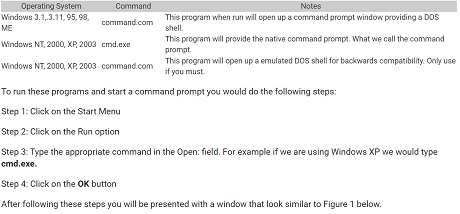
Using the Command Prompt or Dos WindowWhen people refer to the command prompt they may refer to it in different ways. They may refer to it as a shell, console window, a command prompt, a cmd prompt, or even dos. In order to enter the command prompt, you need to run a program that is dependent on your operating system. Below we list the programs that you need to run to enter a command prompt based on the version of Windows you are running.
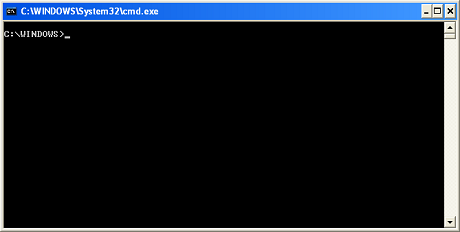
The command prompt is simply a window that by default displays the current directory, or in windows term a folder, that you are in and has a blinking cursor ready for you to type your commands. For example in Figure 1 above you can see that it says C:\WINDOWS>. The C:\WINDOWS> is prompt and it tells me that I am currently in the c:\windows directory. If I was in the directory c:\program files\directory the prompt would instead look like this: C:\PROGRAM FILES\DIRECTORY>.
To use the command prompt you would type in the commands and instructions you want and then press enter. In the next section, we will discuss some useful commands and how to see all available built-in commands for the command prompt.
Useful commandsThe command.com or cmd.exe programs have built-in commands that are very useful. Below I have outlined some of the more important commands and further instructions on how to find information on all the available commands.
The
Help command - This command will list all the commands built into the command prompt. If you would like further information about a particular command you can type help commandname. For example, the
help cd will give you more detailed information on a command. For all commands, you can also type the command name followed by a /? to see help on the command. For example,
cd /?The
Exit command - This command will close the command prompt. Simply type
exit and press enter and the command prompt will close.
The
CD command - This command allows you to change your current directory or see what directory you are currently in. To use the CD command you would type
cd directoryname and press enter. This would then change the directory you are currently into the one specified. When using the cd command you must remember how paths work in Windows. A path to a file is always the root directory, which is symbolized by the \ symbol, followed by the directories underneath it. For example, the file notepad.exe which is located in c:\windows\system32 would have a path as follows \windows\system32\notepad.exe. If you want to change to a directory that is currently in your current directory you do not need the full path but can just type
cd directoryname and press enter. For example, if you are in a directory called c:\test, and there were three directories in the test directory called A, B, and C, you could just type cd a and press enter. You would then be in the c:\test\a. If on the other hand, you wanted to change your directory to the c:\windows\system32 directory, you would have to type
cd \windows\system and press enter.
The
DIR command - This command will list the files and directories contained in your current directory if used without an argument, or the directory you specify as an argument. To use the command you would just type dir and press enter and you will see a listing of the current files in the directory you are in, including information about their file sizes, date, and time they were last written to. The command will also show how much space the files in the directory are using and the total amount of free disk space available on the current hard drive. If I typed
dir \test I would see the contents of the c:\test directory as shown in Figure 2 below.
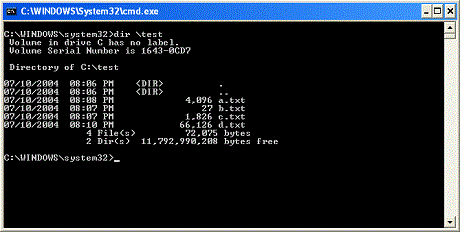 Figure 2. DIR of c:\test
If you examine the screen above you will see a listing of the directory. The first 2 columns are the date and time of the last writing to that file. Followed by whether or not the particular entry is a directory or a file, then the size of the file, and finally the name of the file. You may have noticed that there are two directories named. and .., which have special meaning in operating systems. The . stands for the current directory and the .. stands for the previous directory in the path. In the example above, .. stands for c:\windows.
Also, note for many commands you can use the * symbol which stands for a wildcard. With this in mind, typing
dir *.txt will only list those files that end with .txt.
The
Copy command - This command allows you to copy files from one location to another. To use this command you would type
copy filetocopy copiedfile. For example, if you have the file c:\test\test.txt and would like to copy it to c:\windows\test.txt you would type
copy c:\test\test.txt c:\windows\test.txt and press enter. If the copy is successful it will tell you so and give you back the prompt. If you are copying within the same directory you do not have to use the path. Here are some examples and what they would do:
copy test.txt test.bakCopies the test.txt file to a new file called test.bak in the same directory
copy test.txt \windowsCopies the test.txt file to the \windows directory.
copy * \windowsCopies all the files in the current directory to the \windows directory.
The
Move command - This command allows you to move a file from one location to another. Examples are below:
move test.txt test.bakMoves the test.txt file to a new file renaming it to test.bak in the same directory.
move test.txt \windowsMoves the test.txt file to the \windows directory.
move * \windowsMoves all the files in the current directory to the \windows directory.
At this point, you should use the help command to learn about the other available commands.
RedirectorsRedirectors are an important part of using the command prompt as they allow you to manipulate how the output or input of a program is displayed or used. Redirectors are used by appending them to the end of a command followed by what you are redirecting to. For example
dir > dir.txt. There are four redirectors that are used in a command prompt and they are discussed below:
> This redirector will take the output of a program and store it in a file. If the file exists, it will
be overwritten. If it does not exist it will create a new file. For example, the command
dir >
dir.txt will take the output of the dir command and place it in the dir.txt file. If dir.txt exists, it
will overwrite it, otherwise, it will create it.
>> This redirector will take the output of a program and store it in a file. If the file exists, the
data will be appended to the current data in the file rather than overwriting it. If it does not exist
it will create a new file. For example, the command
dir >> dir.txt will take the output of the
dir command and appends it to the existing data in the dir.txt file if the file exists. If dir.txt does
not exist, it will create the file first.
< This redirector will take the input for a program from a specified file. For example, the date
command expects input from a user. So if we had the command
date < date.txt, it would
take the input for the date program from the information contained in the date.txt file.
| This redirector is called a pipe. It will take the output of a program and pipe it into another
program. For example,
dir | sort would take the output of the dir command and use it as
input to the sort command.
Batch FilesBatch files are files that have an extension ending in .bat. They are simply scripts that contain command prompt commands that will be executed in the order they are listed. To create a batch file, just make a file that ends in .bat, such as test.bat, and inside the file have the commands you would like. Each command should be on its own line and in the order you would like them to execute.
Below is an example batch file. It has no real use but will give you an example of how a batch files works. This test batch file contains the following lines of text:
cdcd \testdircd \If I was to run the test.bat file I created I would have an output that looks like the following:
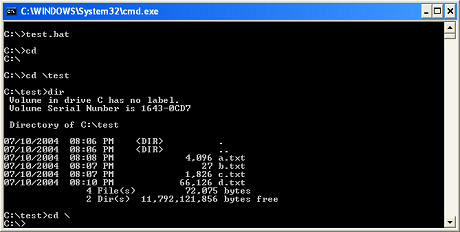 Figure 3: Example of a batch file running.
As you can see from the figure above, my batch file executed each command in my batch file in the sequence they were written in the batch file.
Console ProgramsIf a program is created for the express purpose of running within a command prompt, or console window, that program is called a console program. These are programs that are not graphical and can only be run properly from within a command prompt window.
Below is a list of sites that contain console programs that may be useful to you:
http://unxutils.sourceforge.net/There are many more sites that have tools available. Just do a Google search on windows console programs.
ConclusionThe command prompt can be a very powerful and versatile tool for a computer user. Hopefully, this brief introduction to the command prompt will enable you to use your computer more efficiently.
source

