Change and dissatisfaction can lead to a lot of innovation. Such is the case with the taskbar on Windows 11, which has made many people unhappy and has resulted in an explosion of apps and utilities to improve it.
One such app is RoundedTB, an app designed to make your taskbar as curved as the rest of the Windows 11 UI.
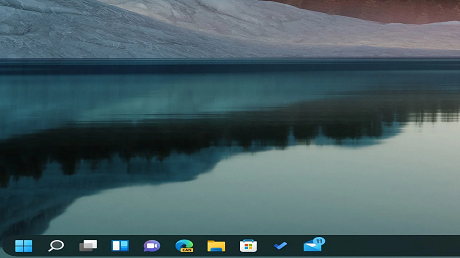
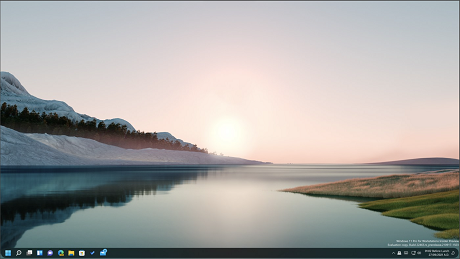
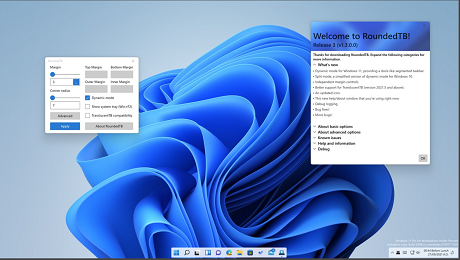
Its description reads:
Add margins, rounded corners, and segments to your taskbars! With RoundedTB, you can customize the shape and appearance of Windows’ taskbar, without modifying any system files or making any permanent system changes.
The app offers the following options:
■ BASIC OPTIONS
The simplest way to use RoundedTB is by simply entering a margin and corner radius. RoundedTB
lives in the system tray, just right-click its icon to access all the settings.
○ Margin – controls how many pixels to remove from each side of the taskbar, creating a margin
around it that you can see and click through.
○ Corner Radius – adjusts how round the corners of the taskbar should be.
○ Advanced – displays a host of additional advanced customisation options, explained below.
○ Apply – applies the selected settings to the taskbar.
ADVANCED OPTIONS
These allow for further customization, at the cost of some user-friendliness.
■ Independent Margins – in the advanced settings, a […] button appears on the margin box. Click it
to enable independent margins, which allow you to specify the margin for each side of the taskbar.
You can also use negative values to hide the rounded corners for some sides, allowing you to
“attach” the taskbar to different sides of the monitor.
■ Dynamic Mode (Windows 11) – dynamic mode automatically resizes the taskbars to accommodate
the number of icons in it, making the taskbar behave similarly to macOS’ Dock.
■ Split Mode (Windows 10) – split mode is a simplified version of dynamic mode for Windows 10. Due
to a more limited taskbar, dynamically resizing the taskbar isn’t possible. However after some setup
(enable this option for more info), split mode allows you to separate the taskbar from the system
tray and resize it at will. I admit it’s certainly not as cool as dynamic mode, but for now it’s better
than nothing ?
■ Show System Tray – this toggles whether or not the system tray, clock etc. is displayed in
dynamic/split mode. It can be toggled at any time by pressing [Win]+[F2].
■ TranslucentTB Compatibility – I’ve worked closely with Sylveon to enable some level of compatibility
between TranslucentTB and RoundedTB. This is experimental and will flicker slightly, and requires
TranslucentTB version 2021.5 to function. For more info, enable this option.
There are currently some known issues, such as the taskbar stretching to the left in some configurations and features like auto-hiding is still experimental, but overall there does not appear to be any deal breakers.
RoundedTB is free and can be found in the Store
here.
 source
