There are certain video or audio formats that your preferred video player might not support, so you might require to convert them into a compatible one.
Generally, PC users use different third-party dedicated video or audio converter programs for converting their media. However, if you are a Windows 10 user, you don’t require any external program for the format conversion.
If you are comfortable with the command-line interface rather than the graphical one, you can use the Command Prompt for converting your video or audio files.
In this post, we would discuss how to set up FFmpeg for using the Command Prompt to convert media files’ format.
Set Up the FFmpegBy default, Command Prompt does not support the media file conversion. So before using the Command Prompt for conversions, you first need to set up the FFmpeg.
FFmpeg is an open-source, cross-platform utility tool that can be used for converting any audio or video file into almost any format. Here are the steps to set up the FFmpeg:
1. Open FFmpeg’s website by following
this link.
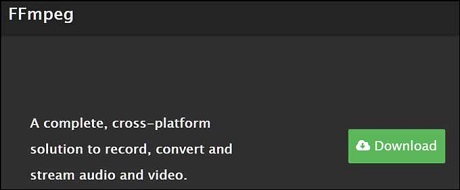
2. Click on the Download button.
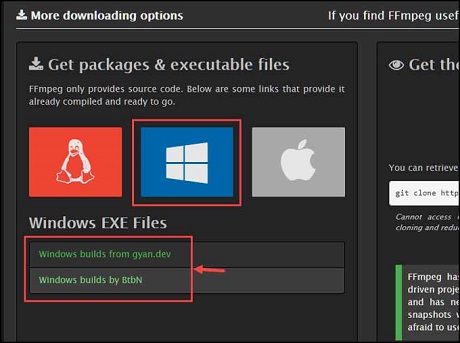
3. Under the “Get packages & executable files” heading, hover the mouse pointer over the Windows icon and choose any of the links for downloading the FFmpeg package.
4. Extract the package after it is downloaded.
5. Navigate to the drive where the Windows is installed. Generally, it is the C drive.
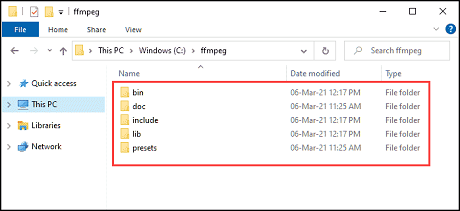
6. Create a new folder and name it “ffmpeg”
7. Paste all the files from the extracted folder to the “ffmpeg” folder.
 Add FFmpeg’s Path to the System
Next, you have to add the FFmpeg’s path to the system.
1. On the Windows search bar, type
View advanced system settings and click on its icon to launch.
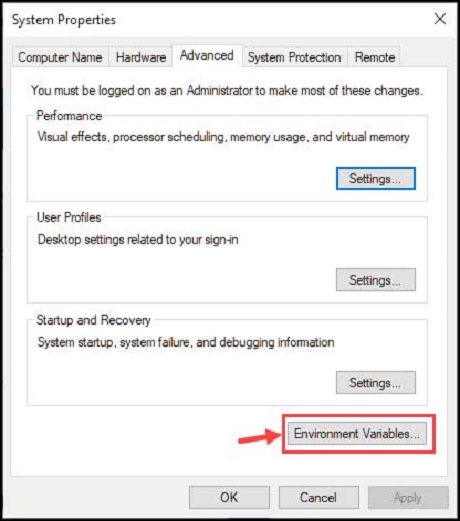
2. Under the Advanced tab, click on
Environment Variables.
3. Select “
Path” and click “
Edit.“
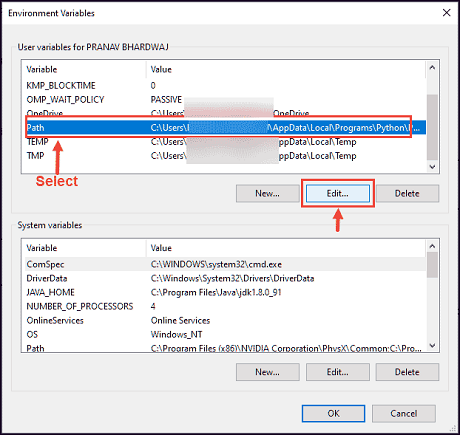
4. Click
New and type this path:
C:\ffmpeg\bin\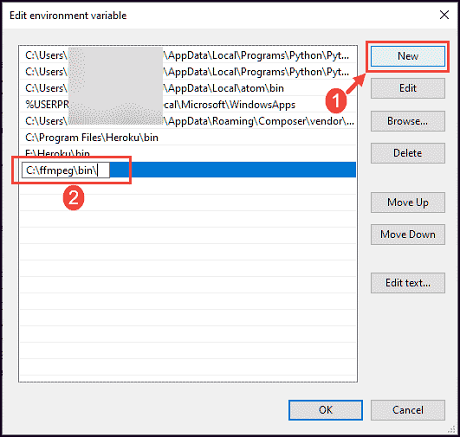
That’s it. You are ready with FFmpeg to use Command Prompt for media file conversion.
How to Convert a Video using Command Prompt? FFmpeg allows you to convert almost any video format to any other format. For this post, we would convert ‘Sample.mp4’ into ‘Sample.avi.’ To convert the video using Command Prompt, follow these steps:
1. Open the Command Prompt
2. Using the
cd command, reach the folder where your video file is present. Since Sample.mp4 is on Desktop, we would use the
cd desktop command.
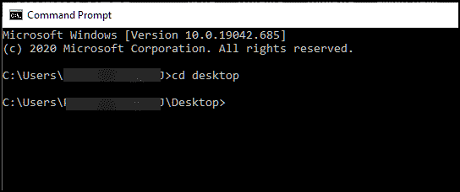
3. Now use the following command to convert the Sample.mp4 to Sample.avi:
ffmpeg -i sample.mp4 sample.mkv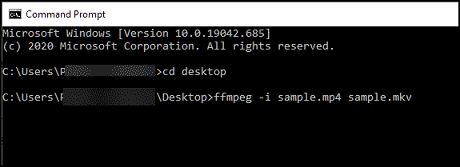
4. It would take some time to convert the file, depending on its size.
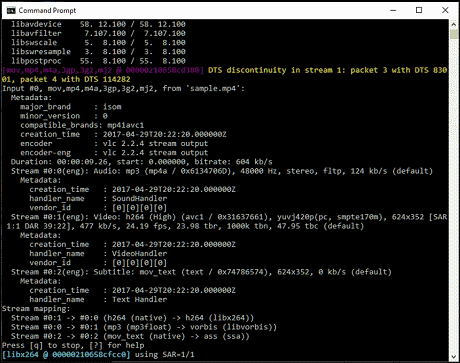
5. The output file would be saved in the same folder where the original file is present.
How to convert an Audio file using Command Prompt? For this post, we would convert ‘Audio-Sample.mp3’ to ‘Audio-Sample.wav.’ Here are the steps for that:
1. Launch Command Prompt
2. Reach the source folder using
cd desktop.
3. Type the following command to start the conversion:
ffmpeg -i Audio-Sample.mp3 Audio-Sample.wav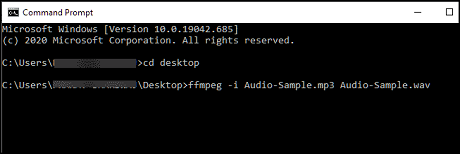
4. The conversion would finish in a few moments.
How to extract Audio from Video using Command Prompt?You can also use FFmpeg to extract audio from the video. Here we will extract the audio of ‘sample.mp4’ and convert it into ‘sample2.mp3’. Here are the steps for that:
1. Open the Command Prompt
2. Head to the location of the video file from which you want to extract audio using
cd.
3. Type this command to extract the audio from sample.mp4 video file:
ffmpeg -i sample.mp4 -vn sample2.mp3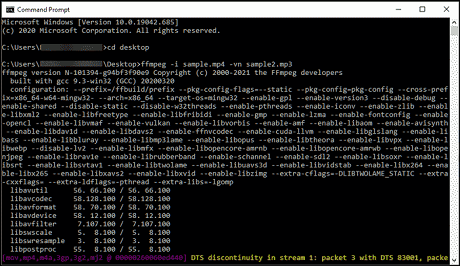
4. A new file named sample2.mp3 will be generated in the same folder as the source.
Bottom LineThough there are many third-party apps available for file conversions, using Command Prompt is the safest option. In the search for a third-party converter, you might install a malicious program on your system. Using FFmpeg is totally secure and easy. While using the command, you might get this error: “
ffmpeg is not recognized as an internal or external command.” Verify that you have followed all the steps correctly, especially the step to create the FFmpeg’s path.
source
