The Internet is an amazing resource for all of us, but it’s also a dangerous place. It’s important to protect your network from intruders and hackers. There are many ways to secure your Wi-Fi network, and today we’re going to talk about 10 easy steps that will help keep you safe online and
secure your device from external threats.
Why is it important to secure your Wi-Fi Network?
Many people still take security for granted and don’t consider the consequences of their behaviors. Hackers are everywhere these days, so if you’re not careful with your Wi-Fi network security, then someone could end up stealing your personal information at any moment.
Here are the top reasons why securing your office and home Wi-Fi network is essential:
• It is essential to know that your home Wi-Fi network can be accessed out of your house, too, as you cannot
limit the range of the network to a specific radius. So, intruders can exploit this and can get hold of your
network and eventually your devices.
• By getting their hand on an unsecured Wi-Fi network, a cyberattacker can do the following things:
•
Remotely control your system and access all files and folders.
• Spread malware on your device.
• Use your device or network to conduct illicit activities.
• Slow down the system and
internet connection • A secured Wi-Fi network could save you from identity theft
• Keep your private conversations private (online banking, email).
• Stop data throttling by ISP’s (internet service providers) to get you to pay for using the internet more than
they want you to.
• Prevent Internet Service Providers from blocking or redirecting you to certain websites.
•
Keep your kids safe online by making sure that they can’t access inappropriate content.
How to access your Wi-Fi Router Settings?
Before moving forward on applying the security settings listed in the next section, you need to know how to access your Wi-Fi router control panel. It is because most of the security tips require configuring the administrator-level settings. I will recommend you to keep logged in to your Wi-Fi router control panel in advance to apply the security settings quickly.
To access the dashboard of your Wi-Fi router settings, follow these steps:
Before moving forward on applying the security settings listed in the next section, you need to know how to access your Wi-Fi router control panel. It is because most of the security tips require configuring the administrator-level settings. I will recommend you to keep logged in to your Wi-Fi router control panel in advance to apply the security settings quickly.
To access the dashboard of your Wi-Fi router settings, follow these steps:
1. Open the web browser and type in the following address “
192.168.0.1” or “
192.168.1.254“.
2. It will ask for router login username and password, so enter whatever you have noted down when
purchasing it or setting it up for the first time. If you have never set up the router before, just enter the
default username and password. Mostly the default username is
admin and the default password is
password or
admin.
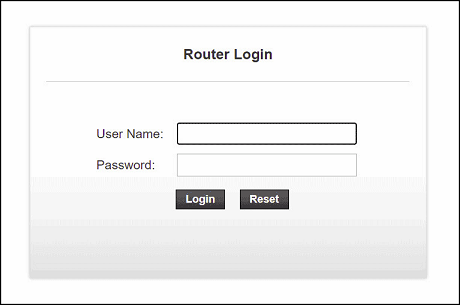
3. That’s it. Now you can navigate to wherever it is required for applying the different security settings.
How to Secure Wi-Fi Network in Windows?
There are a number of ways you can apply to secure your Wi-Fi network. Let me list them out one by one for your better understanding.
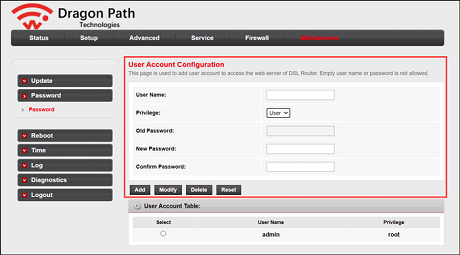
Change the default Administrator PasswordWhen you install a router, the manufacturer sets it up with a default username and password. This is well known by hackers, so it’s important to change these immediately to something more secure. For that, you can follow the steps given below:
1. Log in to your WiFi Router control panel for accessing its settings.
2. After login, look for an option named ‘WiFi Security’ or ‘Wireless network security.’ In my case, it is
available under the
Maintainance tab.
3. Either turn on or off WiFi Security depending upon your need from the given options and save the settings.
4. Now, simply change the administrator username and password using the steps given here.
 Change the Default SSID and Password
Most of us either don’t bother to change or simply don’t know how to change the name of our router’s SSID. If you want, you could follow the below steps and do this:
1. Log in to your wireless router.
2. Now click on the
Setup tab.
3. In this tab, look for a field that says ‘Router name’ or SSID and change this to something that will be
unique and not easy to guess.
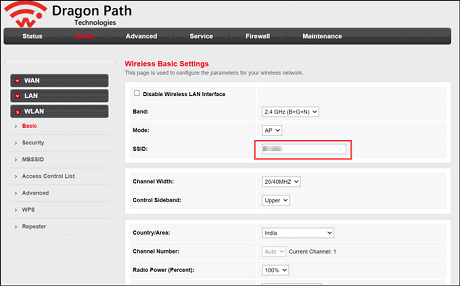
4. Also change the
Wi-Fi password and choose a strong and unique one.
Enable Wireless MAC FilteringThis is another method to secure your WiFi network. MAC filtering is a feature that allows you to specify which devices are allowed to connect to your network based on the physical address of the device, also known as the Media Access Control (MAC) address. This is a good way to prevent unauthorized access to your network. To enable MAC filtering on your router, you’ll need to know the MAC address of each device that you want to allow access to.
This can be done by following these steps:
1. Log in to your wireless router.
2. Now click on the Firewall tab or look for similar settings on your router dashboard.
3. On the left pane, you will see a section with the heading ‘MAC Filter’. Navigate to it.
4. This will open a window where you will have to add the MAC addresses of all the devices that you want to have access to your network.
5. Add the
Source MAC,
Destination MAC, and configure other settings. Click
Add.
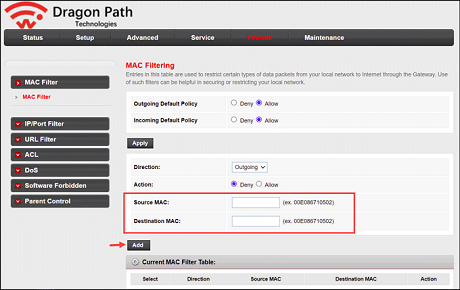
6. After adding all the devices, save the settings and exit.
7. Now, when any device tries to connect with your network, the router will check this table, and if it finds
their MAC address listed, then only it allows them to access your network.
Encrypt your Wi-Fi NetworkThis is the most important step to secure your WiFi network. Encryption protects your data as it travels from your device to the router and vice versa. It also prevents unauthorized access to your network.
WPA2 or Wi-Fi Protected Access Version 2 is the most secure security protocol available for your Windows 10 and 11 computer. To enable this, you can follow these simple steps:
To encrypt your office or home Wi-Fi network, you need to have a password. This password will be used by all devices that want to connect to the network. To set that, follow these steps:
1. Log in to your wireless router.
2. Now click on the
Setup tab (in some routers, it’s Advanced tab).
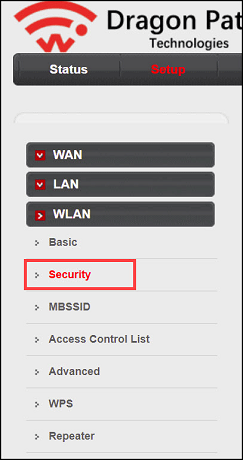
3. From the left pane, navigate to
Security settings under WLAN.
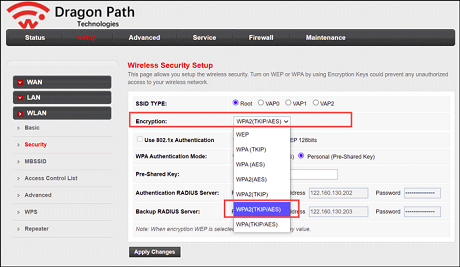
4. Here, look for an Encryption option and set it to
WPA2 from the drop-down menu.
5. Now, you will see a field for ‘
Pre-Shared Key.’ This is your network’s password, so enter a strong and
unique password here.
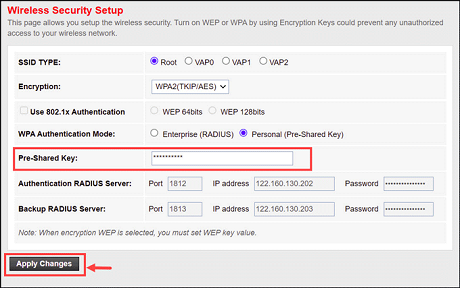
6. After entering the password, save the settings and exit.
Now all the devices that want to connect to your network will need to enter this password.
Disable SSID BroadcastingWhen you enable SSID broadcasting, your Wi-Fi network is visible to anyone who is within range of your network. This makes it easy for hackers to find your network and try to hack into it.
If you have a secure network but don’t want to broadcast its existence then you can do so by hiding your SSID. This can be done by following these steps:
1. Open the web browser and type in the following address “192.168.0.1” or “192.168.1.254”.
2. It will ask for router login username and password, so enter whatever you have noted down when
purchasing it or setting it up for the first time.
3. After login, it will take you to the router control panel. Here look for an option named ‘Wireless Network
Settings’ or something similar.
4. Under the Wireless Network Settings, uncheck the box next to ‘Enable SSID broadcasting’ and save the
settings.
Update your router firmwareSince your router is a device that’s connected to the World Wide Web, it can be prone to multiple vulnerabilities. Its firmware might have bugs and loopholes that hackers can exploit. To prevent this from happening, you need to make sure that it always has the latest bug fixes and patches available for it. This is done by updating its firmware regularly.
Router manufacturers regularly release updates to their firmware in order to patch security vulnerabilities and improve performance. It’s important to keep your router up-to-date by installing these updates as soon as they’re available.
You can update your router firmware by following these steps:
1. Log in to your wireless router.
2. Now click on the
Maintainance Tab.
3. Here, you will see a table with the heading ‘
Firmware Upgrade’. If it is not currently upgraded then click on
the ‘
Check’ button and it will start checking for updates.
4. If an update is available then you will see a link to download it. After downloading, save the file to your
computer and follow the instructions provided to upgrade your firmware.
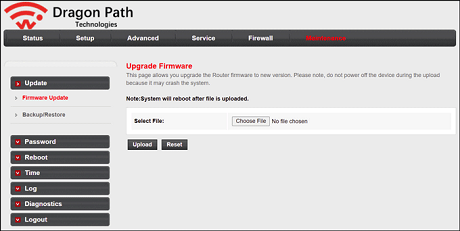
5. After upgrading, restart your router.
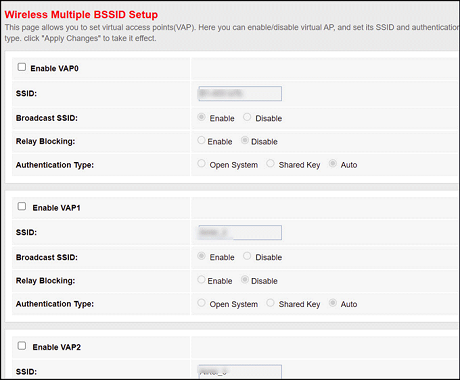
Set up a guest network for smart home devicesDo you use several smart devices like Wi-Fi speakers and sensors? All of these can be accessed by hackers. To prevent this from happening, it is recommended that you set up a separate network for your smart home devices. For example, if there are three computers in your home then consider adding an access point to create two networks; one for the computers and one for the smart devices.

VPN stands for Virtual Private Network and is a secure network connection between two computers. The connection passes through a public channel (such as the Internet) and routes it to an internal network, thus making the communication private. You need a VPN service to protect your home or office WiFi from snooping and eavesdropping.
Conclusion
When you use unsecured Wi-Fi, there is a high chance that people might be snooping on your activities. Even if they aren’t, it’s always better to be safe than sorry! That is why you should not access any sensitive information such as passwords and bank details without properly securing your Wi-Fi network.
If you want to be safe on the internet, just follow the steps mentioned in this post and tightly secure your home and office Wi-Fi networks.
Why does it say my WiFi is not secure?If you see this message on your Windows system, then you’re likely using either Wired Equivalent Privacy (WEP) or Temporal Key Integrity Protocol (TKIP) encryption. These are unsecured protocols that can be dangerous to your system.
How to choose a strong password for the Wi-Fi?To keep your Wi-Fi router secure, it is essential to guard it with a robust and unique password. You can create such a password by the combination of words, numbers, and special characters.
source
