Windows PowerShell is a command-line shell and scripting language created by Microsoft. With Windows PowerShell Windows system administrators can perform a number of tasks remotely, including installing software, configuring networking, and accessing the registry.
However, recently, there has been a rise in the reports of Windows PowerShell Virus among Windows users.
In this post, we will know more about Windows PowerShell Virus and how to remove it.
What is Windows PowerShell Virus?To release dangerous malware programs, cybercriminals commonly use the name of legitimate apps and services. It is pretty common, especially in the case of Microsoft products and Windows PowerShell Virus is the latest in a long line of Microsoft viruses.
It is a malware program that is designed to perform malicious activities on the targeted computer such as stealing information and data or encrypting the files and folders. The malware is often spread through malicious emails and file sharing.
What makes Windows PowerShell Virus dangerous is that it can easily bypass the anti-virus detection and remain undetected for a long time. The malware can create a backdoor on the infected machine so that the attacker can access the infected computer at any time.
Apart from that, the malware can use the computer to perform DDoS attacks on other computers and websites
What are the dangers of the PowerShell Virus?Once Windows PowerShell Virus is installed on your computer, it will carry out a number of malicious activities.
• The malware can change the Registry settings of your computer, open a backdoor on the infected computer,
create a scheduled task, and more.
• The malware can also perform actions such as:
• Installing malicious apps
• Running malicious scripts
• Connecting to a remote server
• Encrypting files and folders
• Showing fake error messages
• Scanning and harvesting information and contacts
• Displaying fake security alerts
• Downloading other malware files
• Apart from that, Windows PowerShell Virus can access and share your private information such as call logs,
contacts, and messages.
• The malware can also track your browsing activity and get your financial details.
What are the Symptoms of Windows PowerShell Virus?After its infiltration, the Windows PowerShell Virus will show certain signs that would confirm its existence in the system.
Here are the most common symptoms of a PowerShell Virus:
• PowerShell Windows will randomly open while you are doing any other task.
• It will install other malware programs on the infected computer, you will notice a number of unknown apps
on your computer that you don’t remember installing.
• The malware can change the settings of your computer. There might be random notifications, pop-ups.
• CPU and Disk usage will be at their peak. Other legitimate programs will be affected and might not run
properly.
• Your device will heat up, despite you not using it actively. It is because PowerShell Virus is continuously
active in the background.
How does PowerShell Virus enter my PC?The Windows PowerShell Virus can enter your computer in various ways depending on the infection route used by the attacker.
The following are some of the common methods how the malware can enter your computer:
• It can be spread through malicious emails and files,
• The attacker can also take advantage of the software vulnerabilities of your computer.
• The attacker can also access your computer remotely and install the malware.
• Most malware gets into the system through bundled software.
• Clicking on intriguing pop-ups or banner ads while browsing the internet can also introduce the Windows
PowerShell Virus in the computer.
• Peer-to-peer networks, such as torrents, are also one of the primary carriers of such viruses.
How to remove Windows PowerShell Virus?
If your computer is infected with Windows PowerShell Virus, you should take action immediately and remove the threat completely. To remove it from your system you can follow these ways:
Enter the Safe ModeWindows Safe Mode is the perfect environment to find out what’s wrong with your system. Under Safe Mode, only critical Windows processes run and it automatically kills the other startup processes. It is the best way to uninstall or remove stubborn applications and files.
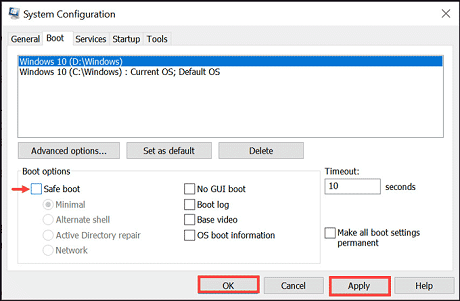
To enter Safe Mode on Windows 10 and Windows 11, follow these steps:
1. Open the Run Command box and enter
MSConfig and hit the enter key.
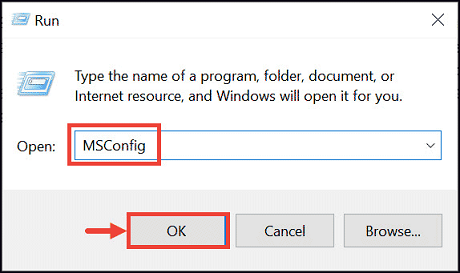
2. Switch to Boot tab. Under it, tick the
Safe boot checkbox, click
Apply, and
OK.
 Uninstall the Suspicious Applications
Uninstalling the suspicious applications would clear the PC from the culprit application. To uninstall applications follow these steps:
1. Right-click on the start button and select the
Task Manager.
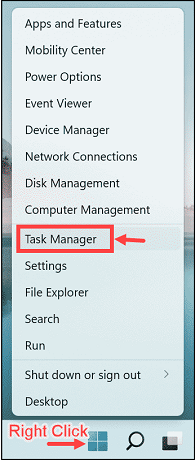
2. Watch out for the applications that are consuming the system memory even though you did not install or
launch them.
3. Right-click on the suspicious application and open its file location.
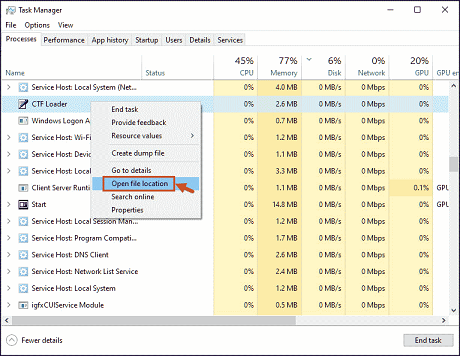
4. Delete the file from its root location.
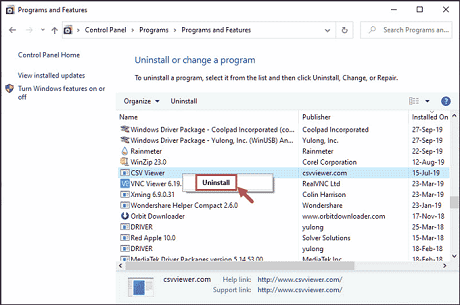
5. Open Control Panel and click on
Uninstall a program and check for suspicious apps. One by one,
select and uninstall them.
 Delete Temporary Files
Temporary files unnecessary get accumulated in the system and take up valuable space. Such files might indirectly cause the system to slow down.
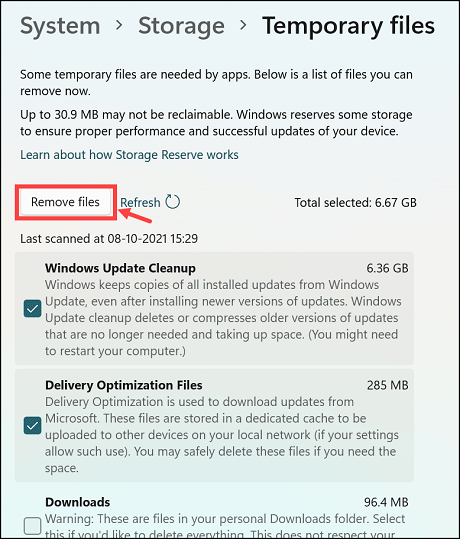
On Windows 11, it is easy to remove Temporary files. Here are the steps:
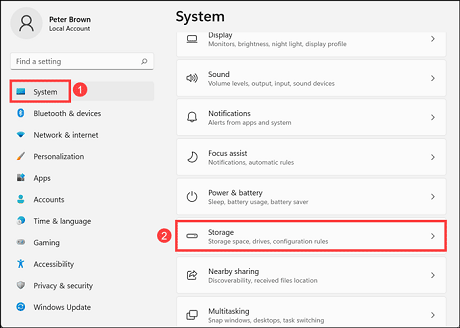
1. Open Windows 11 Settings from the Start Menu.
2. From the left pane, choose
System settings and click on
Storage from the right.
3. Click on the
Temporary files option.
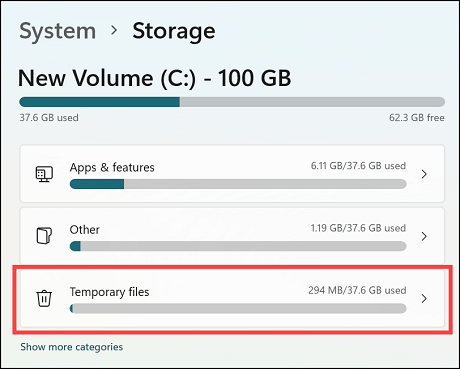
4. Tick all the boxes that you want to delete and click on
Remove files.
 Run Antimalware Scan
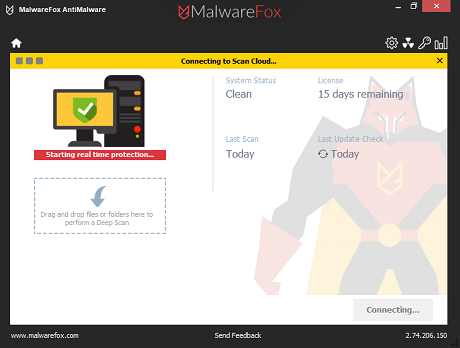
Manually removing PowerShell Virus is a time-consuming task, as you have to identify and eradicate all the related files, folders, registry entries, and processes manually. If you are not tech-savvy or if you don’t have the time to go through all the manual steps, you should opt for a powerful antimalware tool to get rid of the Windows PowerShell Virus. One of the best ones currently is the MalwareFox.
MalwareFox is reliable security software that promises to protect your system and helps to handle malware and viruses. MalwareFox will scan, detect, and remove Malware and offers real-time protection. It also protects your PC from the most dangerous malware such as Ransomware, Zero-Day Attack protection, Grayware, Keyloggers, etc.
1.
Download Malwarefox and install it.
2. Perform a full system scan to get rid of every malware that is troubling your system.
 Reset Windows
Even after applying all the above steps, if you are still struggling with the Windows PowerShell Virus, the last option is to reset your Windows PC. Resetting the PC will put it in the default state where everything is working perfectly. To reset your PC seamlessly, follow this step by step guide:
•
How to Reset WindowsHow to avoid Malware Programs?
It is always best to remain protected from such malware programs, as they can lead to serious consequences. Here’re some general tips that you should follow to avoid being attacked by malware programs:
1. Always use a powerful anti-malware tool to have real-time protection.
2. Make sure your system carries all the security patches and updates released by Microsoft for Windows OS.
3. Ensure that you have a strong and secure firewall and that you keep your anti-virus software up-to-date.
4. Do not open spam emails even if they look interesting. Most of the time, it contains malicious files or links which can infect your computer with malware.
5. You should not click on suspicious pop-up ads while browsing the internet.
6. Always download software from their official websites only rather than third-party sites.
Is Windows PowerShell a virus?Windows PowerShell is not a virus, in fact, it is a legitimate Windows utility tool like Command Prompt. However, cybercriminals can use its name to spread viruses and other malware programs on the computer.
Can Windows PowerShell be removed?Yes, you can uninstall Windows PowerShell if you don’t use it, and also, can download and install it later if you feel you need it.
source
