
When you're done with your PC for the day, shutting down your computer is the final step before you get on with your life. There are lots of built-in ways to shut your PC down, such as through the Start menu, using a built-in keyboard button, and pressing (not holding!) the power button on your PC.
However, Windows does let you shut down your PC via a desktop or taskbar shortcut, but it does a poor job explaining how to do it. As such, here's how to make a shutdown shortcut on Windows 11.
How to Add a Shutdown Button to the Windows 11 Desktop
You don’t need any extra software to add a Shutdown button to the Windows 11 desktop. It’s simply a matter of adding a new option shortcut to the desktop, which is a bit different from a standard software one. Instead of specifying a location, you enter a command for the option’s shortcut. You can add a Shutdown button to the desktop as follows.
1. Right-click the Windows 11 desktop and select the
New context menu option.
2. Select
Shortcut to open the Create Shortcut window
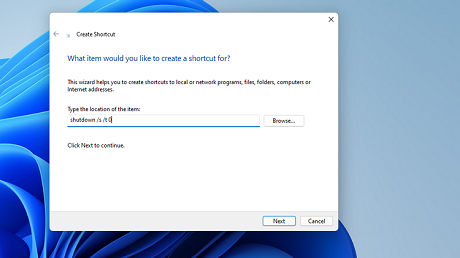
3. Now input
shutdown /s /t 0 within the location text box as in the screenshot directly below.
4. Click the
Next button to proceed to the naming step.
5. Type
Shutdown within the text box.
6. Press the
Finish button to add the shortcut to the desktop.
To add an icon to your new Shutdown button, right-click the shortcut and select
Properties. Then press the
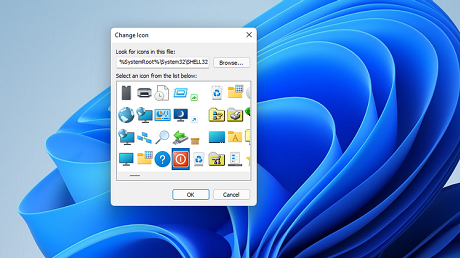
Change Icon button on the
Shortcut tab to bring up the window shown directly below. There select the red shutdown icon for the shortcut, and click the
OK option. Press the
Apply button, and click
OK to exit the window.
Alternatively, you can get many other alternative shutdown icons for the button from the
IconArchive website. Enter the keyword
shutdown in that site’s search box to find some icons. Then choose an icon you like, and select the ICO button to save it to a folder.
When you’ve done that, bring up the Change Icon window for the Shutdown button again. Click
Browse on that window to select the custom icon you’ve downloaded. Select it within the Change Icon window, and click
OK >
Apply.
Now you can try out your new Shutdown button. Click the button on the desktop to shut down Windows 11. You’ll never need to select the Start menu option again!
source
