It's easy to make a mistake with Windows and leave the front door open for hackers, so here's how to lock it down once again.
Hackers know that people make mistakes when using Windows, and they can use that weakness to exploit their computers. As such, it comes down to you, the user, to assess your habits and nip the bad ones in the bud.
But how do you know when you've adopted practices that make your Windows machine an easy target to hack? Here are seven Windows security mistakes to look out for, as well as tips on how to rectify them to secure your PC.
1. You Haven't Updated Windows in a WhileHackers release thousands of new malware to infect your Windows PC every month, meaning you can't afford to miss important security updates. Microsoft constantly releases updates that add new features, fix bugs, and plug security loopholes. However, if you have
disabled automatic updates for any reason, you can easily forget to install them yourself for months on end.
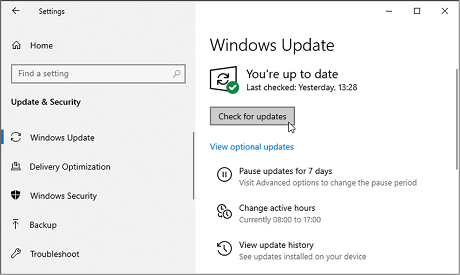
With your computer connected to the internet, update Windows by clicking on Start and then the gear icon to open
Settings. Head to
Update & Security >
Windows Update and click on
Check for updates. If Windows finds new updates, install them.
 2. You Have Outdated Apps
Since many apps on Windows save your personal information, hackers can exploit them to steal it if they aren't secure. Luckily, app manufacturers also release updates to improve their security, preventing hackers from capitalizing on outdated code and designs.
To update apps you've downloaded from the Microsoft Store, enter "Microsoft Store" in the
Search box on the
Taskbar and click on the app in the search results to launch it. Then, click
Library (bottom left) to see which apps need updating.
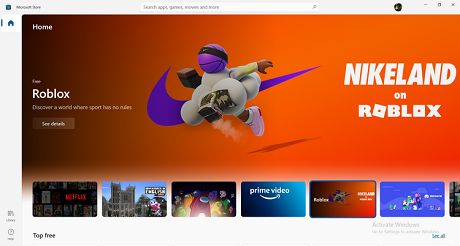
Click on
Get Updates for the Microsoft Store app to scan for new updates and install any that it finds.

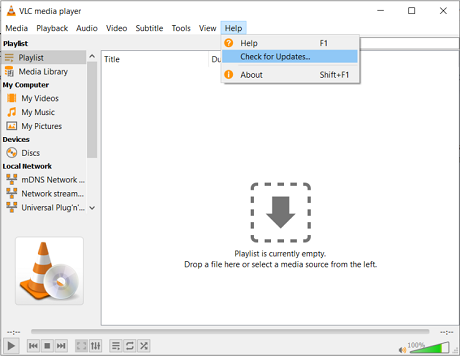
Most apps you didn't install through the Microsoft Store will notify you when an update is available. If not, you can open the app and check for updates manually. For example, with the VLC media player, you can go to
Help >
Check for Updates to see if a new and better version is available.
 3. You Don't Perform Full System Scans Regularly
While on the internet, it's easy to pick up malware without realizing it. Hence, it's important to perform a full system scan at least once a week. And if you're worried you'll forget, you can easily automate the scanning process.
You don't have to download any third-party antivirus software, as Windows Defender, provided you've updated it, can do an effective job. Enter "Task Scheduler" in the
Search box and click on the app in the results to open it. Under
Task Scheduler Library on the left pane, head to
Microsoft >
Windows >
Windows Defender.
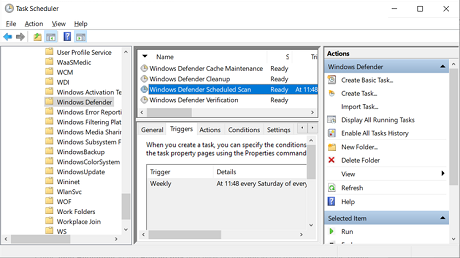
In the middle pane, double-click on
Windows Defender Schedule Scan. This will open the Windows
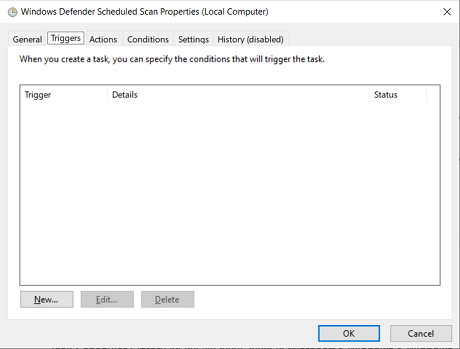
Defender Scheduled Scan Properties (Local Computer) window. In the
Triggers tab, click on
New to create a trigger.
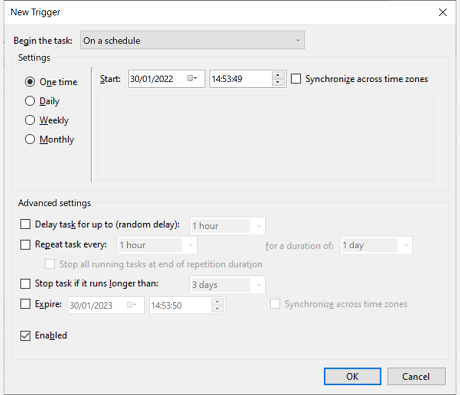
Under
Settings in the
New Trigger window, select
Weekly and the day you want the scan to recur. Then, click on
OK.
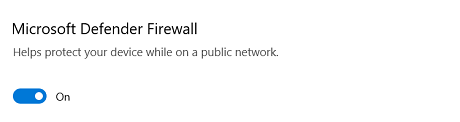
 4. Your Windows Defender Firewall Isn't On
Not having a firewall is an open invitation for external threats, such as malicious data packets sent by hackers, to invade your Windows PC. You should only ever disable your firewall when necessary, and you should never forget to turn it back on afterward.
If you didn't remember to switch on the firewall after disabling it, it's time to fix that immediately. Press the
Windows Key, enter "
Firewall" in the
Search box, and click on
Firewall & network protection in the results.
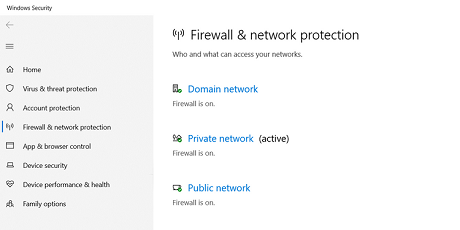
Click on
Domain Network and set
Microsoft Defender Firewall to On. Go back and do the same for
Private Network and
Public Network.
 5. You Disabled User Account Control (UAC)
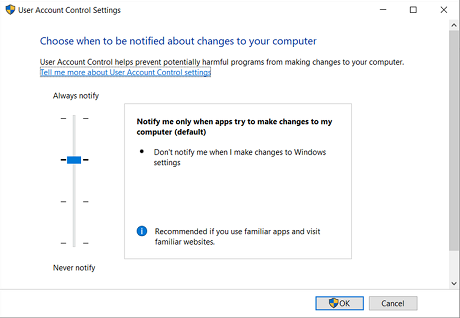
UAC is not a feature you want disabled, especially if you're always online. One of UAC's critical functions is to limit programs from making changes that can affect the entire system. So, should your Windows machine get infected by malware, UAC will prevent it from gaining system-wide access.
To enable the feature, hit the Windows Key, type "
UAC" in the Search box, and select
Change User Account Settings from the results. If the slider is on
Never Notify, drag it up to the level you want to enable UAC.
 6. You Didn't Encrypt Your Hard Drive
If you hold sensitive data on your hard drive, it is important to encrypt it. That way, if you ever lose your laptop or someone steals your computer, they won't be able to open the drive and access the information.
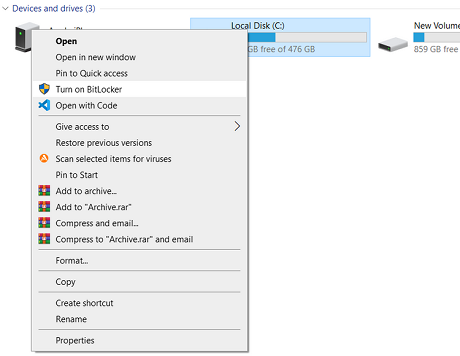
To encrypt your hard drive, press the
Windows Key, type "
This PC," and open the app in the results. Right-click on the hard drive you want to encrypt and select
Turn on BitLocker.
Select
Use a password to unlock the drive, enter the password you wish to use, and click
Next. Make sure to
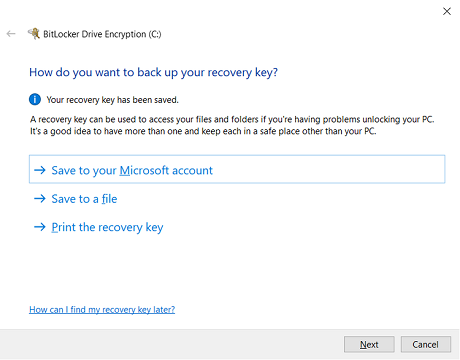
create an unbreakable password you won't forget. Then, choose how to back up your recovery key and click on
Next.
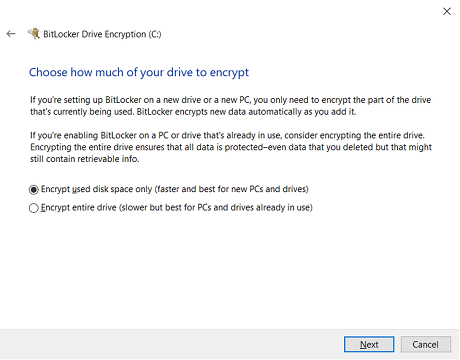
Choose whether you want to encrypt only the disk space you've used or the entire drive, and then click
Next.
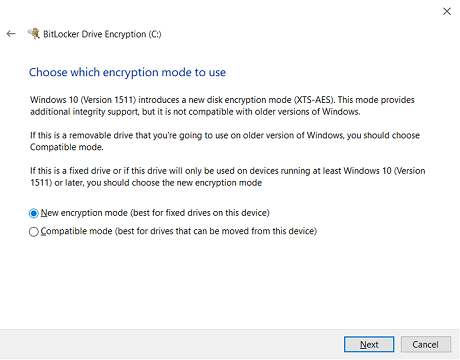
Click
Next to choose the default encryption mode.
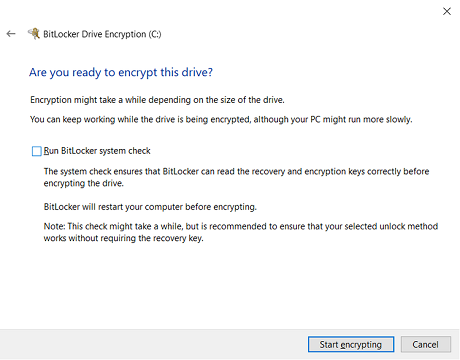
Finally, click
Start encrypting to begin the encryption process.
Once complete, there will be a lock icon on the encrypted hard drive. That means you'll need to enter a password every time you restart Windows to gain access to your files.
7. You Let Everyone Use Your User AccountLetting family and friends use your computer is not a big deal. But if you let them use your user account, there's no telling if their actions will inadvertently compromise it. The best way to avoid this is by creating a guest account.
Click on Start and go to
Settings >
Accounts >
Family & other uses. Under
Other users, click on
Add someone else to this PC.
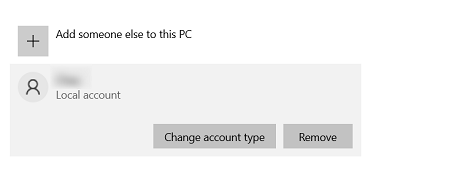
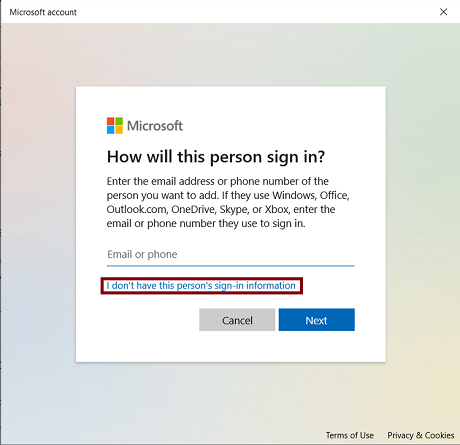
On the next window, choose
I don't have this person's sign-in information.
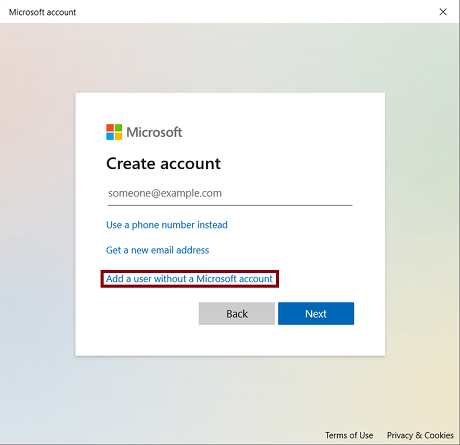
Next, choose to
Add a user without a Microsoft account.
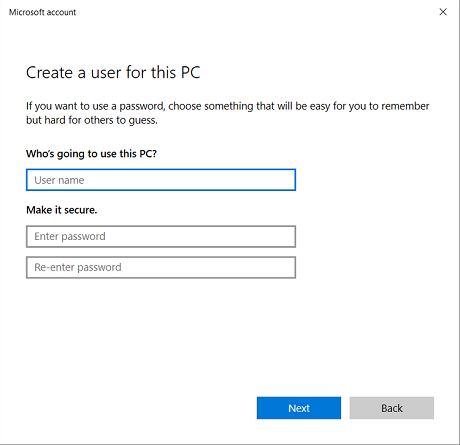
Name the account "
Guest" and
create a password to finish setting it up.
 Time to Adopt Good Habits for Your Windows Security
By making sure you're not making the mistakes mentioned above, your Windows PC should be harder to hack. Keep in mind that securing your computer is an ongoing process. So consider this article as the beginning of your journey in creating good habits that will make your Windows system impenetrable.
source
