With an update to Microsoft Windows 11, you can no longer easily map OneDrive to a drive letter. Instead, you must resort to the ancient command-line system known as DOS.
Over the past few years, TechRepublic has published several articles showing you tricks and tips that allow you to designate a specific drive letter to Microsoft OneDrive. This was necessary because Microsoft no longer allows it to use conventional methods. Well now, a reader has informed us that with the update to Windows 11, one of those tricks has become obsolete. So, we must find another way.
Once upon a time, long before Windows and graphical user interfaces, personal computers were run from the command line using DOS. Many of those ancient legacy commands are still viable, even in Windows 11. This is where we will find the commands we need to designate a specific drive letter to Microsoft OneDrive.
How to map OneDrive to a drive letter in Windows 11Before we begin, some of you may be wondering why you would want to give OneDrive a drive letter in the first place. I learned a long time ago that when it comes to how people use their PCs, it is best to go with the flow and assume there is a good reason.
In this case, a reader asked for help after discovering that a previous tip no longer worked. So, we are helping to solve the problem the best we can. That said, what if you were writing a script in PowerShell that referenced OneDrive? Using a drive letter as shorthand for a specific OneDrive folder could come in handy.
The first thing we need to do is start our command-line session with administrative rights. In Windows 11, click the search icon in the taskbar and type "cmd" into the search box. Select Run as Administrator from the options list to reach the command line window shown in
Figure A.
Figure A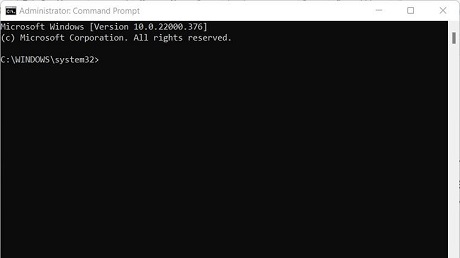
To accomplish our task, we will be using the "subst" command, which is short for substitute. Its simple function is to substitute a drive letter for a specific folder recognizable by the operating system. The basic syntax looks like this:
subst [: [:]]
The most difficult part of this trick is determining exactly what path your installation of Microsoft OneDrive uses according to the operating system. To do that, we must take advantage of some DOS-level directory surfing.
First type "cd/" and then type "dir". These are the DOS change directory and the displayed directory commands respectively, and we are changing our focus to the root directory (
Figure B) and getting a list of subdirectories on the main drive (most likely C:).
Figure B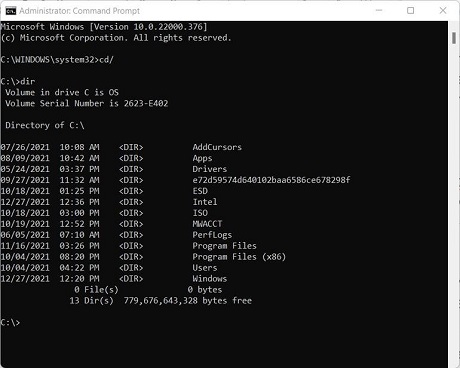
The OneDrive directory is a subdirectory of the Users directory, so we type "cd/Users" at the command prompt and then request another list of subdirectories by typing "dir" again, as shown in
Figure C.
Figure C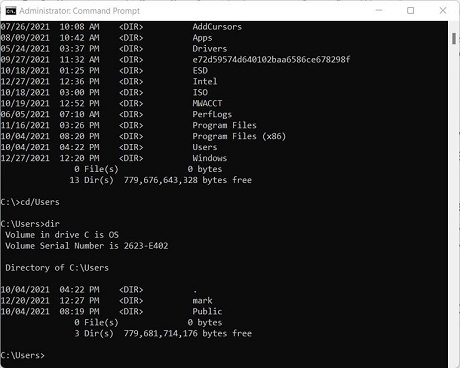
Now, this is where it gets interesting. For my PC, the user directory is named "mark" but for your PC it will be completely different. Whatever the name, the next command should be "cd/Users/(fill in your directory name)". For our example, the commands would be:
cd/Users/mark
dir
Your results will be similar to the screen shown in
Figure D. Note, you must type in the full path for the command to work. A DOS limitation.
Figure D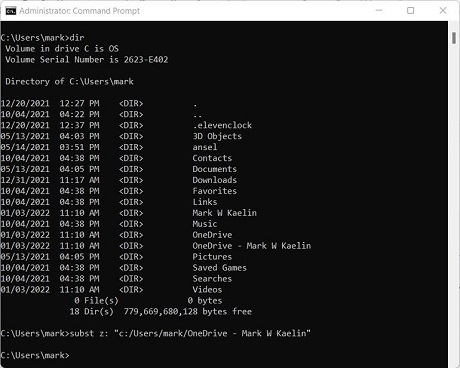
In our example, the name of my OneDrive directory is called "OneDrive - Mark W Kaelin". As you can imagine, referencing that in a script could be a nightmare. We can substitute a single drive letter (Z:) for that long string of directory names using this command:
subst z: "c:/Users/mark/OneDrive - Mark W Kaelin"
Note the use of quotation marks. We must surround our directory path in quotation marks because it contains spaces. DOS considers spaces to be a break, which means it expects the next bit of text to be a new command. Another DOS limitation. Of course, your OneDrive directory name will differ from mine.
If you now, type "z:" into the command prompt and type "dir" you will see your Microsoft OneDrive listed in all of its DOS glory (
Figure E).
Figure E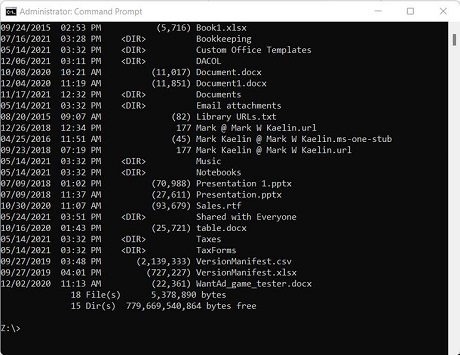
Closeout the command-line session and then load Windows File Explorer. When you scroll down the left-hand list of folders, you will find Z: on the list of available drives, as shown in
Figure F.
Figure F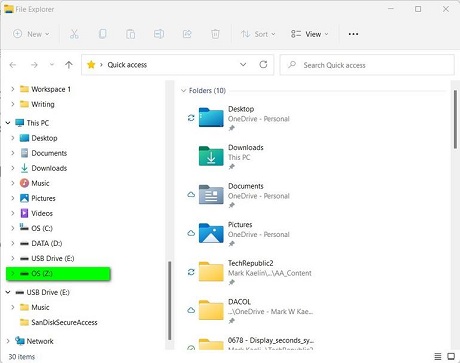
Unfortunately, this setting is not permanent. The next time your PC is restarted, this substitution will be lost and will have to be reapplied. If you want to permanently designate a drive letter to Microsoft OneDrive even during a restart, you will have to resort to another ancient technique known as the autoexec batch file, which is some deep DOS voodoo requiring its own separate article.
source
