Now it is possible to download the updated ISO images of the Windows 11 operating system (version 21H2) with the help of the UUP Dump tool and Microsoft website. You can easily perform a fresh installation of Windows 11 without the need to update a copy of Windows 10 installed on a physical system. Microsoft has released
Windows 11 media creation tool to create a bootable drive and an
Installation Assistant to download the Windows 11 ISO 64-bit files. The UUP dump tool downloads all files from official Microsoft servers and generates a fully functional ISO package that can be used to install Windows 11 from scratch.
Download Windows 11 21H2 22000.318 & 22499 ISO
Method 1: Through Microsoft Website’s Direct Links
Some of you had been waiting for the first ISO directly from Microsoft to try out Windows 11. Now Microsoft has found Windows 11 22000 to be good and is now officially making it available for download as the first Windows 11 ISO. The latest Windows 11 ISO build is 22000.318. The patch KB5007215 increases the version number of Windows 11 to 22000.318 (21H2 Version).
Microsoft has released a new build for those in the Dev Channel today with the build Windows 11 ISO 22499. It is titled “Windows 11 Insider Preview 22499.1000 (rs_prerelease)”. In addition, a fresh build is also available to Windows Insiders in the Beta Channel with Windows 11 ISO 21H2 build 22000.318.
Direct Link:
Win11_English_x64Force Windows 11 Upgrade Guide on Unsupported PC: Click
HereWindows 11 ISO Size: The size of the ISO file is 5.1GB (depends on the language pack).
If the above direct link expires then you can download Windows 11 November 2021 Update ISO using the following steps:
• Go to the Microsoft software download
page.
• Head over to the section “Download Windows 11 Disk Image (ISO)”
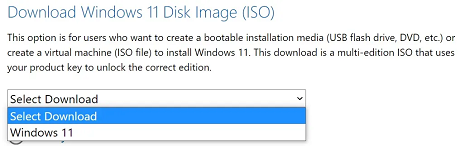
• Select “Windows 11” > Click on “Download”.
• Select the preferred language.
• Now click on 64-bit download.
Method 2: Through the UUP Dump tool
• Visit UUP Dump Website’s dedicated Windows 11 section. It allows users to download the full ISO
file of any version of Windows 11 such as the 22499.1012, 21H2 22000.318 ISO Build. If you do
not know about the latest version download process, just follow a few simple steps (see below).
How to download the latest Windows 11 ISO using the UUP Dump tool?
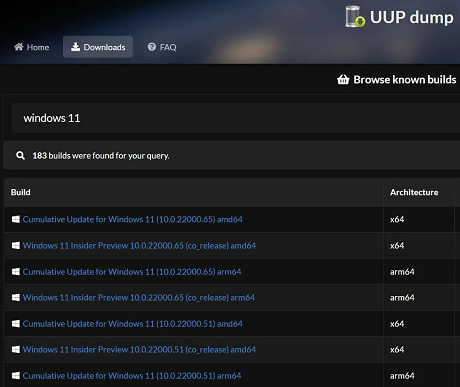
Step 1: Go to the UUP dump
website and Type “
Windows 11” in the search box.
 Step 2
: Scroll down the main page until you find the latest windows build i.e 22499, 21H2 22000.318 ISO.
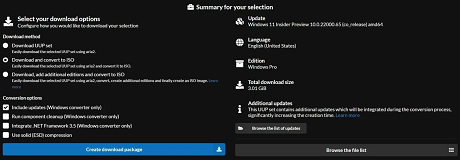
Step 3: Click on the latest build, and Choose English from the Language drop-down menu.
Step 4: Click Next and choose the editions of Windows 11 that you prefer (Pro version suggested).
Step 5: Now click Next again and choose the “Download and convert to ISO” and leave Include updates checked.
 Step 6
: Click on Create download package and you will get a compressed archive that must be extracted locally to a folder of your choice.
Step 7: Now double-click the uup_download_windows.cmd file > click on More Info and then Run Anyway.
Step 8: A procedure will be started and selected Windows 11 version files will be downloaded automatically.
Step 9: Now the Windows 11 ISO file will be stored in the same folder where the UUP dump file was extracted.
Now you can easily create a
bootable Windows 11 drive using the Rufus tool and then install it on your PC. You can also activate Windows 11 with a key.
What’s new in Windows 11 ISO?New design: new interface combining opaque and transparent textures, new animations, icons, new wallpapers, and sounds.
Several applications have been redesigned: File Explorer, Notepad, Paint, Settings.
New Start menu: lighter, easier to use. The disappearance of dynamic tiles.
New taskbar: all icons are now centered by default.
Better management of the secondary screen: when you disconnect the second screen, the windows and applications will be minimized in the taskbar and will return to their place when you reconnect the second screen. Previously, disconnecting the secondary screen caused windows and apps to transfer to the primary screen messily.
Customizable virtual offices: each virtual office created can be personalized to adapt to its use. A theme can be applied to each virtual office to better differentiate them.
Widgets: customizable widgets (weather, news, calendar, etc.) based on artificial intelligence that will adapt to your activities and areas of interest.
Improved tablet mode: The Windows 11 interface will adapt automatically, leaving more space between icons and resizing windows when switching to touch mode. The change from horizontal mode to vertical mode has been redesigned. New gestures are also available to better interact with windows.
source
