You can bypass the various restrictions and run any Android program on your Windows 11 PC.
Update November 6, 2021 - Italian developer Simone Franco has published the WSATools tool in the Microsoft Store that allows you to
install Android apps on Windows 11 via APK without performing command-line operations.
WSATools allows the installation of any Android app in Windows 11 with a click on the APK file downloaded from the Web.
Easy-to-use apk installer for Windows Subsystem for Android. WSATools is a simple APK installer for the Windows 11 subsystem for Android, designed to be intuitive and to make the user immediately feel at home.
- Explorer integration for APK files: double click and press Install!
- Simplified APK installation - just one click.
- It is not necessary to install ADB and know its commands. WSATools takes care of everything!
- If you already have the platform-tools package in your path, it will use that!
- More features on the way!
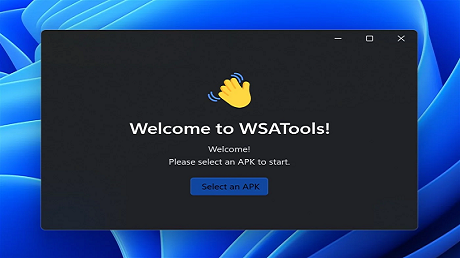
You can download WSATools for Windows 11 for free at this Microsoft Store
address.
Original Article Oct 21, 2021 - Yesterday was the day of the first official availability of
Android app support in Windows 11.
We started with the Beta channel of the Insider Program and for users and Amazon accounts registered in the United States. We also showed how to install Windows Subsystem for Android in Windows 11 and download Android apps available to run on desktop powered by Microsoft software.
In this new guide, we will see how to solve problems and restrictions imposed in this distribution preview and install Android apps in Windows 11 without downloading the Windows Subsystem for Android from the Microsoft Store and without going through the Amazon Store and accounts.
Install Android apps on Windows 11 with APKJust like on mobile, we can use the APK secure system to install and run Android apps on Windows 11. Here's how to proceed.
Download the bundled Windows Subsystem installation package for Android from the
adguard store. To find it, enter in the 3 fields respectively: Product ID - 9P3395VX91NR - Slow and click on the checkmark on the right, as shown in the following image.
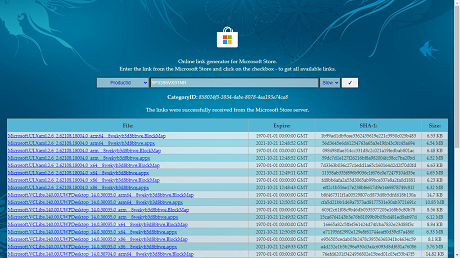
The download to be made is the last one on the list:
MicrosoftCorporationII WindowsSubsystemForAndroid_1.7.32815.0_neutral_ _8wekyb3d8bbwe.msixbundleDownload it and rename it as you wish.
Open a PowerShell (Administrator) window to install the package and start Windows Subsystem for Android.
In the PowerShell (Administrator) window, type
Add-AppxPackage -Path followed by
a space and the path to the downloaded msixbundle file and
enter.
Go to the official Android developer
page and click on
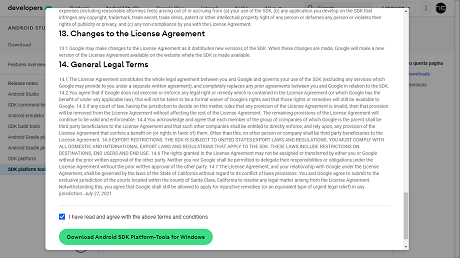
Download SDK Platform-Tools for Windows. You agree to accept the license terms then click on the green button at the bottom of the pop-up ( Download Android SDK Platform-Tools for Windows ).
Open Windows Subsystem for Android Settings and enable
Developer Mode.
Open a Command Prompt (Administrator) window and type the following command:
adb connect 127.0.0.1:58526
Then enter the following command with
the name of the Android app APK (you can find it on the web ) that you intend to
download and run in your Windows 11: adb install pathapp \ appname.apk
Done. The app will install and can be opened and used regularly.
source
