When Windows 11 was first announced on Jun 24, 2021, one of the most exciting features that most users were looking for was the in-built support for Android Apps. However, when users installed Windows 11 on their devices after its official launch, they were disappointed as Microsoft did not provide android app support right away in the initial release.
In the latest development, Microsoft is now allowing users to test the Android apps on their Windows 11 computers. However, this feature is limited to the Windows 11 Insider Preview users who are on the Beta platform. Regular users still might have to wait till next year’s update to install and enjoy Android apps on their desktop without using any emulators. Fortunately, you don’t have to wait that long.
If you are curious to use Android applications on your computer, there is an unofficial method to install the
Windows Subsystem for Android on Windows 11 and sideload Android apps using it. The plus point is, you don’t require to join Insider Program for using this method.
In this post, we will discuss both the official and unofficial ways to install Android Apps on Windows 11. You can use any method that works best for you.
How to install Android Apps on Windows 11? – The Official WayIf you are Windows 11 US-based beta tester, you can now officially install Android apps on your PC through Amazon Appstore.
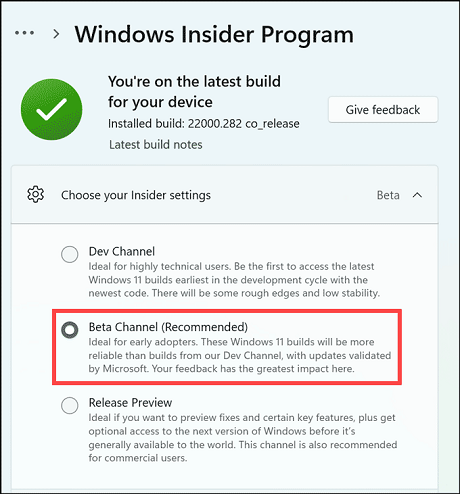
Requirements for Installing Android Apps on Windows 11:Windows 11 Insider Beta ChannelMicrosoft has mentioned that the Android app support is currently only available for Windows 11 Insider Users who are on the Beta channel in the US region. So, if you are an Insider user but on other channels like
Dev or
Release Preview, you have to switch to the Beta channel.
 Windows 11 Build 22000.282 or higher
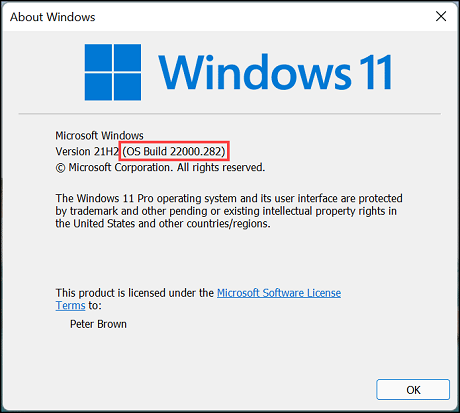
On Windows 11 beta channel, you need to ensure that your system is updated to a minimum
Build 22000.282. You can check Windows 11 Build Number by using the
winver run command.
 Enable Virtualization
The Android apps will require a different virtual environment to run on Windows 11. For that, Virtualization must be enabled on Windows 11. On Windows 11, Virtualization is enabled by default. To check it, open the
Task Manager and shift to the
Performance tab.
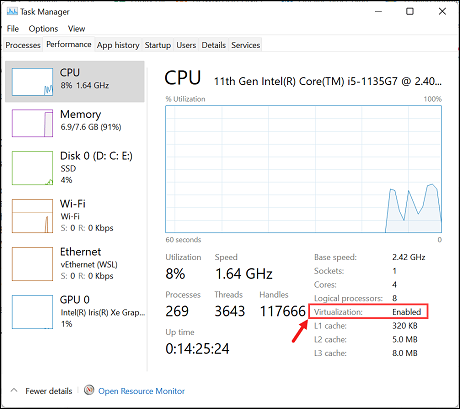
If Virtualization is disabled on your system, you need to enable it from the BIOS settings.
Enable Windows Virtualization FeaturesTo utilize the Virtualization, you require to enable the Windows 11 Virtualization features. For that, follow these instructions:
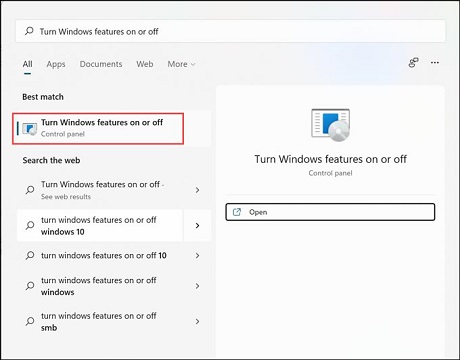
1. On the Windows 11 search box, type
Turn Windows features on or off and click on its icon to launch
it.
2. Under the
Windows Features window, check on these two features to enable them:
• Virtual Machine Platform
• Windows Hypervisor Platform
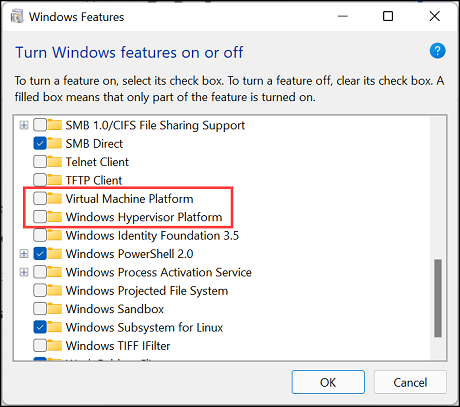
3. Click OK and after applying the changes,
Restart your computer.
Install Windows Subsystem For Android with Amazon AppstoreTo install and run Android apps, you require a virtual environment. That virtualized environment would be created by a new Microsoft tool known as
Windows Subsystem for Android. In addition to that, to officially install Android apps, you need
Amazon Appstore as Microsoft has partnered with them. Both these can be installed together from Microsoft Appstore or Microsoft Website. Before that, verify the requirements to install them.
Requirements to Install Windows Subsystem for Android and Amazon AppstoreThese are the official requirements
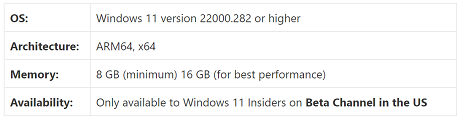 Steps to Install Windows Subsystem for Android and Amazon Appstore
 1. Navigate to the
Windows Subsystem for Android download page.
2. Click on the
Get button.
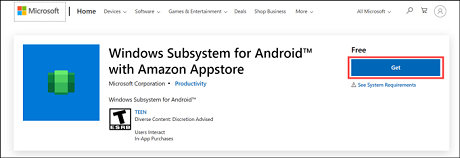
3. Allow opening
Microsoft Store App.
4. Follow the on-screen instructions to install both
Windows Subsystem for Android and
Amazon
Appstore.
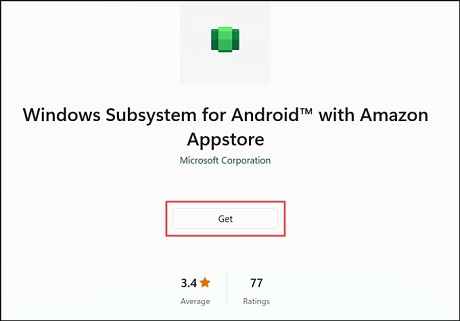 Use Amazon Appstore to Install Android Apps on Windows 11
After installing the Amazon Appstore, here is how you can log in and use it to install Android apps:
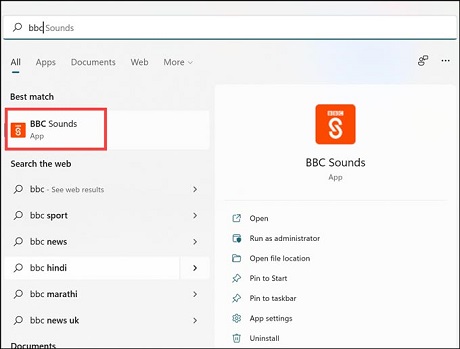
1. Search for the
Amazon Appstore in the Windows 11 search box and click on its icon to launch it.
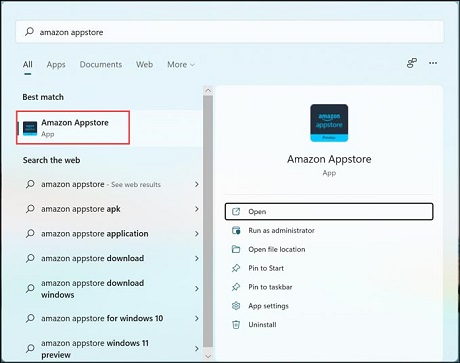
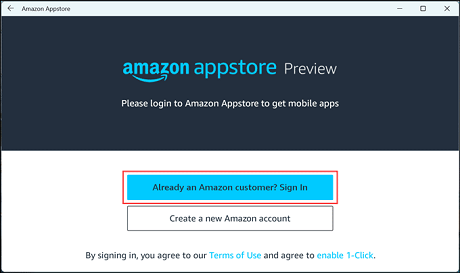
2. You will be asked to log in or create a new account. Do as applicable.
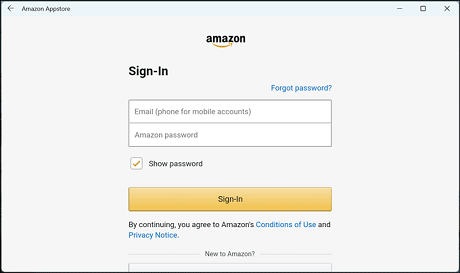
3. On the next screen, enter your credentials and sign in to Amazon Appstore.
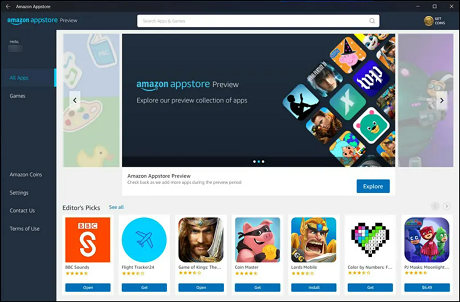
4. Download any app you like. Currently, there are only 50 options available.
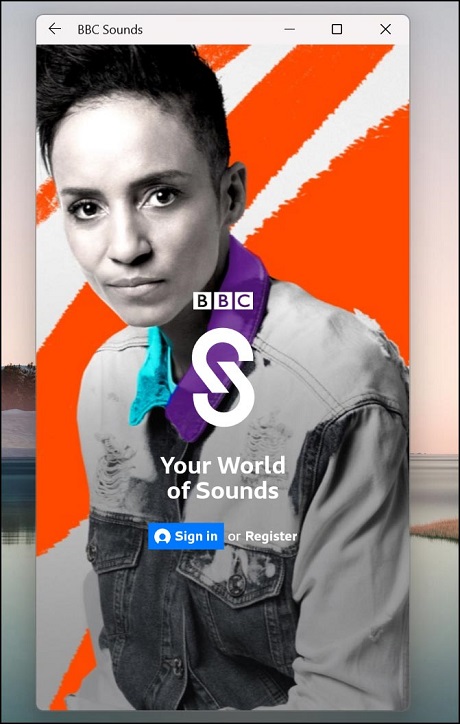
5. Search the downloaded app like you search any other application on the system and click on its icon to
launch.
6. Use the app as you like.
 How to install Android Apps on Windows 11? – The Unofficial Way
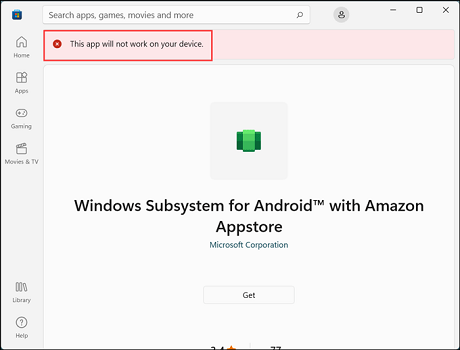
 Using the method explained in the previous section, only the Windows 11 Beta channel users who are US-based can install and run the Android Apps. The beta users of other regions would get a “
This app will not work on your device” error while installing the Windows Subsystem for Android.
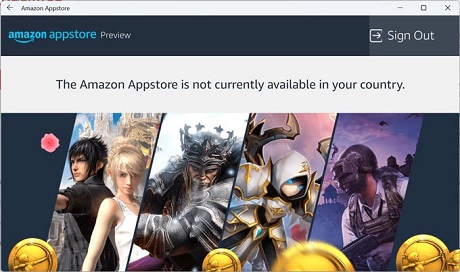
Even if you can somehow install the Subsystem for Android and Amazon Appstore along with it, you will still not be able to use Amazon Appstore as it will display “
The Amazon Appstore is not currently available in your country” error.
So what’s the solution?
Well, there is an unofficial method through which can install Android apps on any Windows 11 system that has a minimum of 8 GB RAM.
For that, you first need to install the Windows Subsystem for Android from either Microsoft Store or external source. Using its developer option, you can easily sideload Android apps using their APK files.
Install Windows Subsystem for Android without Microsoft StoreIf you are unable to install the Windows Subsystem for Android from Microsoft Store, you can do that externally using its MSIXBundle. Here are the steps:
1. Navigate to the Microsoft Store Link generator site (
http://store.rg-adguard.net/)
2. Paste the following link on the given space: (
http://www.microsoft.com/store/productId/9P3395VX91NR), choose the Slow medium from the drop-down menu, and click on the
Tick icon.
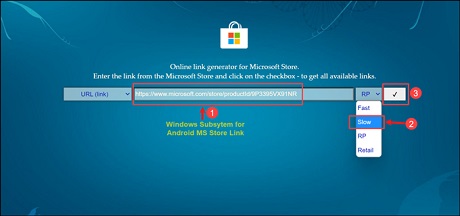
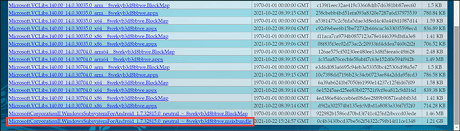
3. A list of many links will be generated. Scroll down and look for
Windows Subsystem for Android Keyword. You will notice the
.msixbundle at the bottom of the page.
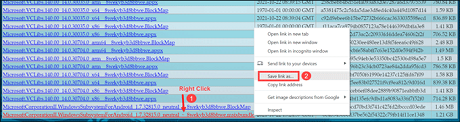
4. Right-click on it and select
Save link as. Select where you want to download this 1.2 GB file.
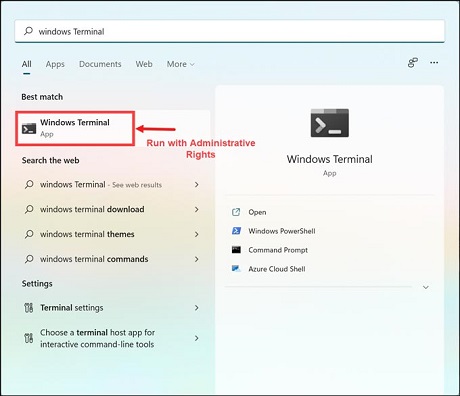
5. After the download is finished, launch Windows Terminal with Administrator rights from the start menu.
6. Install the Windows Subsystem for Android .msixbundle using the following command (change the path to
the actual path):

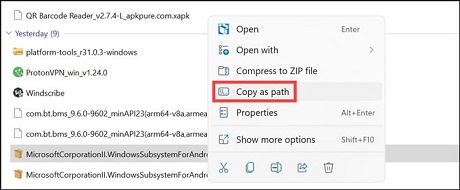
• To copy the path of the MSIXBundle, right-click on the file and choose “
Copy as path“. Paste the
copied path in the command to execute it correctly.
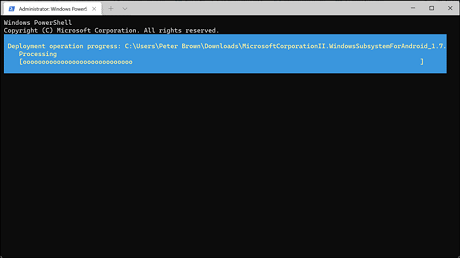
7. It would take some time to install.
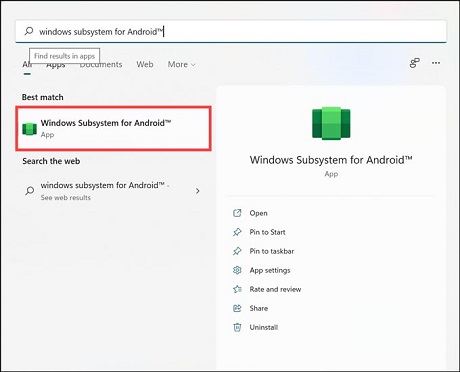
8. Finally, after installation, search for the Windows Subsystem for Android in the search bar to launch it. You
can also access Amazon Appstore if it is working in your region.
 How to sideload Android Apps in Windows 11 using Windows Subsystem for Android?
Suppose Amazon Appstore is not working in your region, or the application you want to install is not available on Amazon. In that case, you can easily sideload it in Windows Subsystem through
Android Debug Bridge (ADB). You just require the APK file of the apps you need and Android SDK Platform-Tools.
Download Required Files • Download the APK of the application you want to install from trusted third-party sources like
APKPure and
APKMirror.
• Next, download the
Android SDK Platform-Tools for Windows. Extract its content on your hard disk.
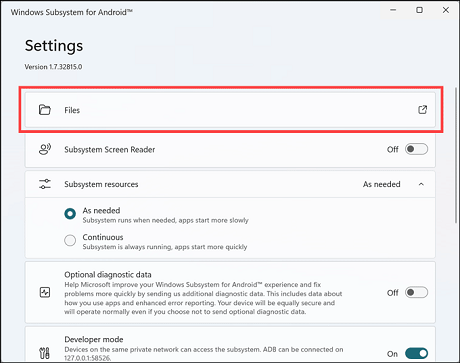
Steps to sideload Android apps in Windows Subsystem for Android 1. Launch Windows Subsystem for Android from the Start Menu.
2. Scroll down and enable the
Developer mode by toggling the switch. Also, copy the
IP Address.
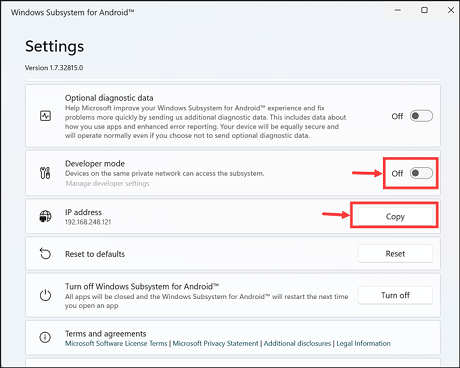
3. If you cannot find the option to copy the IP address, click the
Refresh button. If the option is still
unavailable, scroll up, and click on the
Files option to activate the subsystem.
4. Open Command Prompt and, using the
cd command, move to the folder where you extracted the
Android SDK Platform-Tools. For example, if you have extracted it to “E:\platform-tools”, you would enter
cd e:\platform-tools command and press enter.
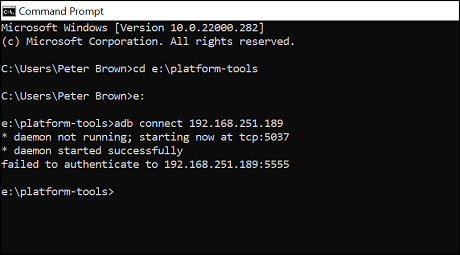
5. Now enter the command
adb connect ipaddress, where the IP address is the one you copied in step
4. For example, in my case, it is “
adb connect 192.168.251.189”. If you see an error about it not
being authenticated, ignore the message.
6. Now you can install the APK that you want using the
adb install “apk path” command. Instead of
apk path, you need to paste the path of that APK file.
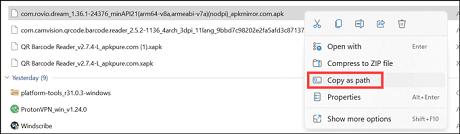
• To copy the path of the APK, right-click on it and select “
Copy as path.”
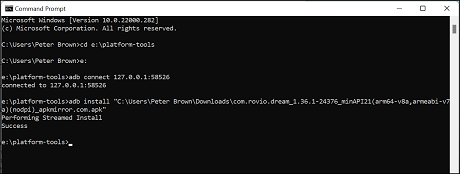
• Now paste the path in the command and hit enter to execute it and install the app. In my case command becomes:
adb install “C:\Users\Peter Brown\Downloads\com.rovio.dream_1.36.1-24376_minAPI21(arm64-v8a,armeabi-v7a)(nodpi)_apkmirror.com.apk” 7. After the command is successfully executed, you will get the success message
 Launch the Installed Apps
After successfully installing the Android apps, you can launch them easily like you launch any other application on your system.
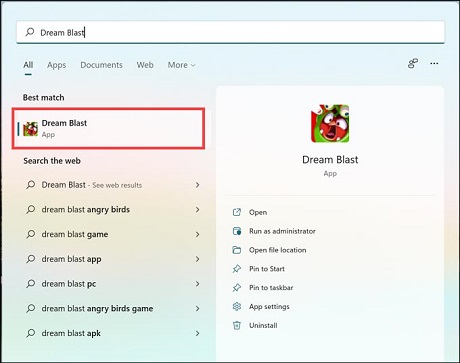
1. Search for the app that you have installed and click on its icon to launch it.
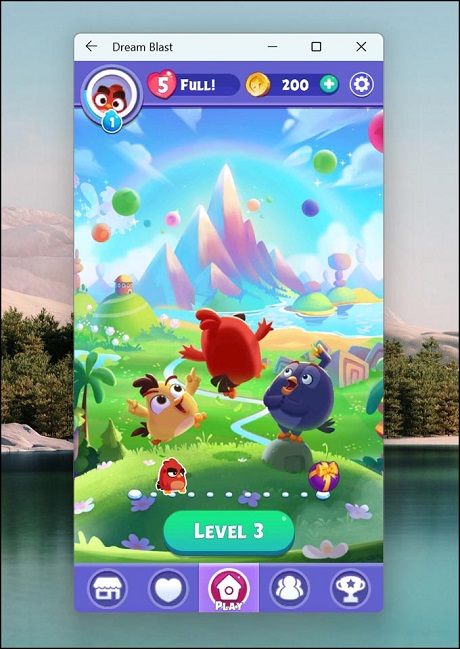
2. Enjoy the app/game after its launch.
 Some Important Points
 • You might see a black screen on launching some sideload apps as all might not support the WSA as of now.
• You will be able to install Google Play Store, but in my case, it is crashing. So, it is possible that you might
not be able to use the apps that require Google services.
• Be careful while downloading APKs from external sources. There are many suspicious sources that provide
malicious APKs in the name of genuine ones. You might infect your system with malware by installing such
apps.
Can you install APK on Windows 11?YES, you can install APK on Windows 11 by enabling the Developer Mode in Android Subsystem for Windows.
What is Windows Subsystem for Android?The Windows Subsystem for Android is a new feature of Windows 11 that allows you to run native Android apps directly from the desktop in a virtualized environment.
Can I play PUBG in Windows 11?Yes, you can play PUBG in Windows 11 by installing it from Amazon Appstore (if it is available) or by sideloading its APK using ADB.
source
