
If you are looking for a quick and easy way to increase your internet speed, switching from 2.4GHz to 5GHz might give you what you're looking for. In Windows 10, you can quickly do it via
Device Manager as long as your computer supports 5GHz.
So, how do you check if your PC supports 5GHz, and how do you turn it on if it does? Let's explore the answer to these questions.
How to Check if Your Computer Supports 5GHz on Windows 10The first step of the process is to make sure your computer supports 5GHz. To do this, we can do a quick and easy command using the
Command Prompt:
1. In the Start menu search bar, search for the
command prompt and select
Run as administrator.
2. In the Command Prompt window, type
netsh wlan show drivers.
3. Press
Enter.
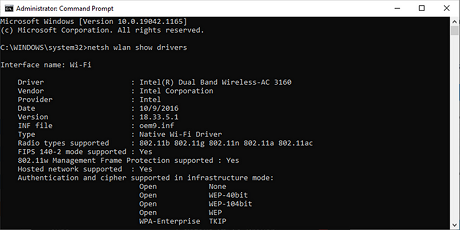
Now, take a look at the values next to the
Radio types supported and compare what you see to the notes below.
•
802.11g and
802.11n. Your computer supports only 2.4GHz.
•
802.11n,
802.11g, and
802.11b. Your computer supports only 2.4GHz.
•
802.11a or
802.11ac. If you can find these among the displayed values, your
computer supports 5GHz.
How to Switch to 5GHz on Windows 10Before making any changes to your network adapter properties, write down the default settings in case something goes wrong.
Here is how you can set 5GHz as your new Wi-Fi band:
1. Click
Start >
Device Manager. Or use the
Win + X keyboard shortcut and
select
Device Manager.
2. Select
View >
Show hidden devices to make sure Windows 10 displays all drivers.
3. Expand the
Network adapters list.
4. Right-click the
Wi-Fi adapter >
Properties.
5. Open the
Advanced tab.
6. Set
Property to
Band or
Preferred band. This option can have a different name
depending on the adapter producer.
7. Use the drop-down menu below
Value and select
5GHz.
8. Click
OK to save the new changes.
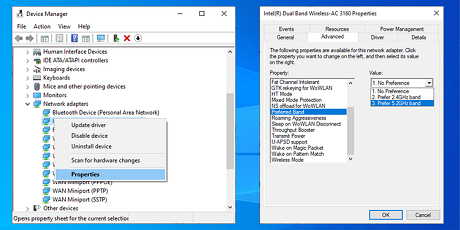 How to Force Windows 10 to Use 5GHz
If there is no
Band or
Preferred Band option available in the wireless adapter properties, you will have to force the change. Search the
Property list for an option named
VHT 2.4G. If
VHT 2.4G is available, set
Value to
Disable to turn off the 2.4GHz option and force your wireless adapter to switch to 5GHz.
If you can’t find any of these options, your wireless adapter only supports 2.4GHz. As a last solution, you can try connecting manually to a 5GHz wireless network or change your Wi-Fi router frequency, but this will affect every device connected to it.
Test How 5GHz Works for YouThere is no outright better choice when it comes to using 2.4GHz or 5GHz. 5GHz should give you better internet speed while 2.4GHz works better if the signal has to travel through obstacles.
source
