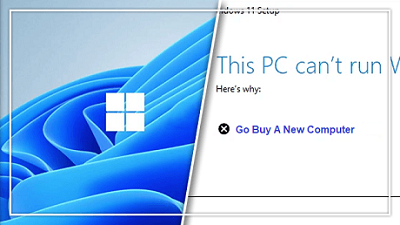
 Every Microsoft announcement brings a lot of excitement, expectation, and few intriguing debates. On June 24th, 2021, Microsoft launched the ambitious all-new Windows 11. However, it is still not officially available to install. Though Windows 11’s first preview is available for the users of the Windows Insider Program, it would take almost 6-8 more months for a stable version to come for your PC. However, since users are eagerly looking forward to Windows 11, Microsoft has provided a way to check whether your current machine is compatible with the Windows 11 or not so that users can upgrade their system accordingly. For that, you can use the PC Health Check application. While checking the Windows 11 compatibility for their device, many users are getting the error warning “This PC can’t run Windows 11” that tells them that their device is incompatible with Windows 11 because of various reasons. It is fair that the warning is appearing on the older devices which might not have the hardware capabilities to run Windows 11, such as the device with Trusted Platform Module (TPM) lower than the 2.0 version. However, the thing that is weird and unacceptable is that the error is appearing on comparatively new devices too, which fulfills the minimum system requirements. This forced us to ponder whether Microsoft wants us to upgrade to the latest Windows 11 or not? The main reason for that can be security. With Windows 11, Microsoft is shifting its focus more on security and privacy, just like Apple. Windows OS are traditionally prone to malware attacks, and with Windows 11, Microsoft is looking for a new beginning to compete with Apple, at least on security and privacy levels. That’s why they don’t want Windows 11 to be installed on the device with old generation processors, even if they meet the minimum requirements. Another reason could be Microsoft might want to limit the existing PCs to run Windows 11. Since it is a new OS that might contain a few bugs, Microsoft might roll it out for other compatible PCs after it gains initial success. If they roll it out for everyone, many users will experience bugs that can have a negative impact on Windows 11 marketing. Microsoft does not want to repeat the same mistake that ruined the reputation of Windows 10. There could also be a bigger picture to this. It is speculated that Microsoft is limiting Windows 11 to the latest device and doesn’t want older devices to upgrade to it because they want people to buy new devices with Windows 11 enabled on them. There is a big valid reason why Microsoft might intend to do that. If you upgrade your old Windows 10 devices to Windows 11, Microsoft will gain nothing as Windows 10 users would get a free upgrade to Windows 11. But, if you buy a new device, Microsoft would earn money for the Windows 11 OS installed on it. Follow this and more by visiting OUR FORUM.  There are lots of reasons to upgrade to the preview version of Windows 11, but that doesn't mean you have to live with all aspects of the new user interface. Perhaps, like me, you don't like the new Start Menu because it takes up so much space. Or maybe you hate the fact that File Explorer is missing a ribbon menu or that right click menus only hold 7 options and force you to click "Show more options" to see them all. The good news is that, with a combination of registry tweaks, third-party apps and some different art work, you can get some of the look and feel of Windows 10 back in Windows 11. The bad news is that Microsoft doesn't seem to want you to go back to a previous UI so it may disable any registry hacks you use in future updates. And these are hacks for a frequently-changing beta OS so there's no guarantee you won't run into bugs; proceed at your own risk. Below, we'll outline a number of tweaks for different parts of the UI and you can use one, several, or all of them to get the look you want. Get a More Windows 10-Like Start Menu Read more on our Forum  We already know that Windows 11 Home will require a Microsoft account (MSA) at the beginning of the installation process. What Microsoft hasn’t publicized is whether it’s possible to log in with just a local account. It is, but only with Windows 11 Pro. A source close to Microsoft has now told us that the only way to avoid using an MSA is with Windows 11 Pro. According to our source, users who buy or own a PC with Windows 11 Pro may choose to use either a local account or an MSA from the very beginning of the installation process. The Windows 11 Home MSA requirement isn’t permanent, just unavoidable. Microsoft will allow the user to transition to a local account once the Windows 11 Home installation process has completed. Retail versions of Windows 11 Home will offer the same experience. Our source told us that local account users will not have a “diminished or limited experience,” though they won’t be able to sync content or use Windows 11’s ability to sync or recommend content from other devices. That content—which could include documents or webpages that a user had viewed on another PC—is typically synced to the user’s MSA account. |
Latest Articles
|